License Management
Licenses are required for both the Catalog Service and the Rule Execution Service. Whether you're deploying an Online or On-Prem service will determine the appropriate method for activating your InRule licenses. For Online installations, you will have an Azure license file provided to you by InRule which can uploaded either through Azure's App Service Editor tool or via FTP. Walkthroughs of both means are provided below.
For On-Prem services, you will need to leverage the InRule License Activation Utility. A walkthrough of this process can be found here.
Uploading a License File
Azure App Service Editor
To upload the InRule license file to your execution service or your catalog service, navigate to the Azure portal and to the appropriate app service. On the left-hand nav-bar, scroll down until you find the App Service Editor option, under the Development Tools header:

On the resulting page, press "Go"

From here, you'll need to navigate to the appropriate file location, which is different depending on if you're adding it for the Execution Service or the Catalog Service:
| Execution Service | Catalog Service |
|---|---|
Right-click on the bin folder on the left-hand side of the screen, then select Upload File: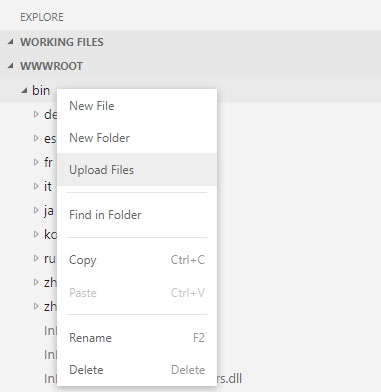 Find your InRuleLicense.xml file wherever you have it stored and select Open to finish. | Right-click anywhere in the top level of the wwwroot directory, then select Upload File: Find your InRuleLicense.xml file wherever you have it stored and select Open to finish. |
With that, your license file should be uploaded and usable by your Rule Execution or Catalog Service.
FTP
This example leverages Azure CLI in addition to Powershell commands. If you intend to use this method, please run the CLI from Powershell.
Alternative approaches using Powershell only should be possible if desired but are not detailed in this document.
First, retrieve the FTP deployment profile (url and credentials) with the az webapp deployment list-publishing-profiles command and put the values into a variable:
# Example: az webapp deployment list-publishing-profiles --name contoso-execution-prod-wa --resource-group inrule-prod-rg --query "[?contains(publishMethod,'FTP')].{publishUrl:publishUrl,userName:userName,userPWD:userPWD}[0]" | ConvertFrom-Json -OutVariable creds | Out-Null

az webapp deployment list-publishing-profiles --name WEB_APP_NAME --resource-group RESOURCE_GROUP_NAME --query "[?contains(publishMethod,'FTP')].{publishUrl:publishUrl,userName:userName,userPWD:userPWD}[0]" | ConvertFrom-Json -OutVariable creds | Out-Null
Then, upload the license file using those retrieved values:
# Example:
$client = New-Object System.Net.WebClient;$client.Credentials = New-Object System.Net.NetworkCredential($creds.userName,$creds.userPWD);$uri = New-Object System.Uri($creds.publishUrl + "/bin/InRuleLicense.xml");$client.UploadFile($uri, "$pwd\InRuleLicense.xml");

$client = New-Object System.Net.WebClient;$client.Credentials = New-Object System.Net.NetworkCredential($creds.userName,$creds.userPWD);$uri = New-Object System.Uri($creds.publishUrl + "/bin/InRuleLicense.xml");$client.UploadFile($uri, "LICENSE_FILE_ABSOLUTE_PATH")