Adding a Classic UI Button
Classic UI buttons are not included directly in the InRule for Salesforce app, but we do provide a helper library and sample code here to make it easier to add a button to a classic form for running rules. This button will run rules, show notifications, and refresh field changes when clicked.
To add a Classic UI button, navigate to Setup → Customize or Create, add a new Button. Set the Behavior to Execute JavaScript and then the Content Source to OnClick JavaScript.
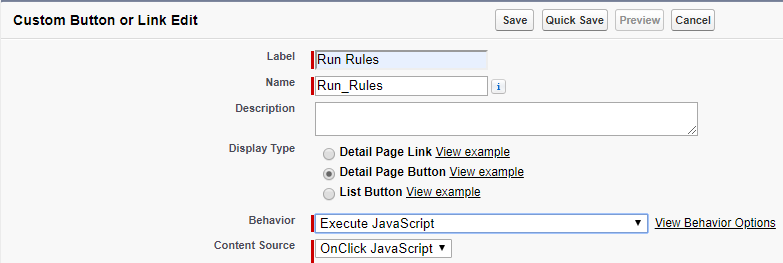
Within the script window, copy and paste over the sample Javascript found below:
{!REQUIRESCRIPT("/soap/ajax/33.0/connection.js")}
{!REQUIRESCRIPT("/soap/ajax/33.0/apex.js")}
{!REQUIRESCRIPT('/resource/' & LEFT(SUBSTITUTE(SUBSTITUTE(SUBSTITUTE(TEXT(NOW()),':',''),'-',''),' ',''),10) & '000/inrule__DecisionClientHelper')}

var config = {
entityId : '{!Account.Id}',
entityType : "Account",
ruleSetName : "AccountDefaultRules"
};

var response = executeRules(config);

displayNotifications(response);

window.location.reload();
Your script window should now look similar to this:
{!REQUIRESCRIPT("/soap/ajax/33.0/connection.js")}
{!REQUIRESCRIPT("/soap/ajax/33.0/apex.js")}
{!REQUIRESCRIPT('/resource/' & LEFT(SUBSTITUTE(SUBSTITUTE(SUBSTITUTE(TEXT(NOW()),':',''),'-',''),' ',''),10) & '000/inrule__DecisionClientHelper')}

var config = {
entityId : '{!Account.Id}',
entityType : "Account",
ruleSetName : "AccountDefaultRules"
};

var response = executeRules(config);

displayNotifications(response);

window.location.reload();
To customize this button for the specific entity type you intend to use this button for, you can alter the "config" object in the Javascript by editing the values of the properties to match the particulars you want.
The table below includes a list of the properties that can be configured on the "config" object:
| Parameter Name | Description |
|---|---|
entityId | The unique Salesforce identifier for the root object in the request. This follows the naming convention of: "entityName.Id" |
objectType | The Salesforce object type of the root object in the request |
ruleSetName (optional) | Optional. The name of an Explicit Rule Set to call as the entry point for rule execution. If no value is supplied, then the Rule Sets configured as 'Auto' for entity will be executed. |
loggingLevel (optional, must be manually added to config object) | Optional. An integer that denotes the amount of information to log after rule execution completes. Results are written to the InRule_Log__c object. Values can be 0, 1, 2, or 3: - 0 – disable all logging - 1 – Logs errors and a minimal amount of information on successful requests - 2 – Logs errors, request information, rule engine notifications, and rule engine validations - 3 – Logs the same information as 2, but also includes JSON from the HTTP request and response payloads Defining a logging level here will override the logging level universally defined for the InRule for Salesforce App in the custom object settings for a specific button. |
useEntityPrefix (optional, must be manually added to config object) | Optional. If set to true, the DecisionClient will append the entity label to the supplied rule set name. |
ruleAppName (optional, must be manually added to config object) | Optional. Defining and passing a RuleAppName here allows you to override the default Rule App Name defined in your Custom Setting created during initial configuration for this specific button. |
Once your config object has been appropriately configured, simply save your button and add it to the entity page layout for use. The button will leverage the DecisionClientHelper static resource to handle the communication between the Javascript button and the DecisionClient, as well as handling any notifications returned from the rules.
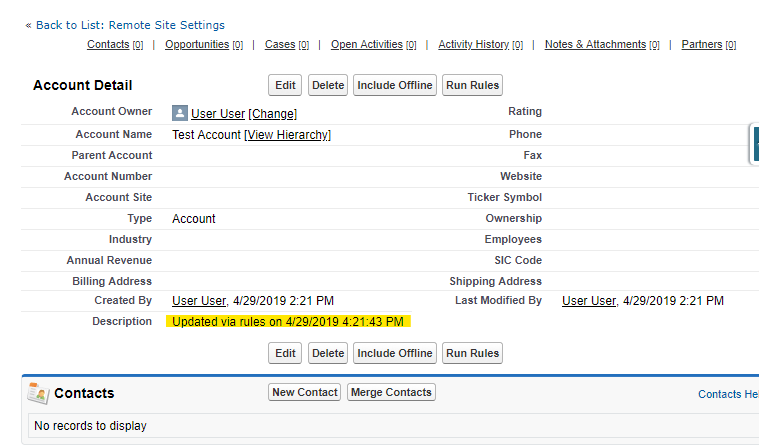
To verify everything is setup correctly, open up a record for the configured object and click the 'Run Rules' button you added. What will happen next is dependent on your configuring rule set, but if you are running the included 'AccountDefaultRules', you should see the description of the account updated with the current date and time.