Catalog App Service
While deploying from Azure Marketplace and AppExchange is generally recommended for initial environments; in advanced scenarios the manual deployment resources can be leveraged for multi-environment DevOps automation. Also note, choosing either path does not require you to stay on the same path across all components; as the deployment options can be mixed and matched as situations warrant.
The following sections are primarily focused on the manual deployment path for the Catalog App Service and Rule Execution App Service for Salesforce, while focusing on the AppExchange deployment path for the InRule for Salesforce App. However, there are still relevant config and testing steps which apply to both paths. For Marketplace deployments, you may skip the manual deployment steps and go directly to the relevant sub-sections for license management, configuration, and setup verification.
Installing the Catalog App Service
The first major objective for a Salesforce implementation is the deployment of a Catalog service to Microsoft Azure.
During this process, you will be creating:
- An Azure SQL Server Database
- An Azure App Service to host the InRule Catalog in the Azure cloud
When you are finished, you should be able to connect to this app service from a locally installed copy of irAuthor, and successfully save a RuleApp to the catalog.
The full process of installing the Catalog in Microsoft Azure is outlined in the documentation found on the InRule AzureAppServices GitHub, which can be found here:
https://github.com/InRule/AzureAppServices/blob/master/README.md#ircatalog-and-ircatalog-manager
Please ensure you are installing the Catalog service, not the irServer Rule Execution Service, which is found on the same page and is not compatible with Salesforce.
Testing the Catalog App Service
At the conclusion of the installation process outlined above you should have a Catalog URI, Username, and Password to use to connect to the catalog service. We'll now verify that we can appropriately connect to it.
To begin, open up irAuthor. By default, the Catalog App Service is deployed out with a test rule app already available on it. We can attempt to access this rule app to verify that everything is working correctly.
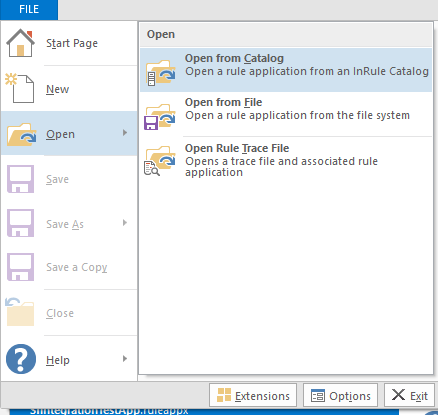
1: From the irAuthor launch screen, navigate to File -> Open -> Open from Catalog
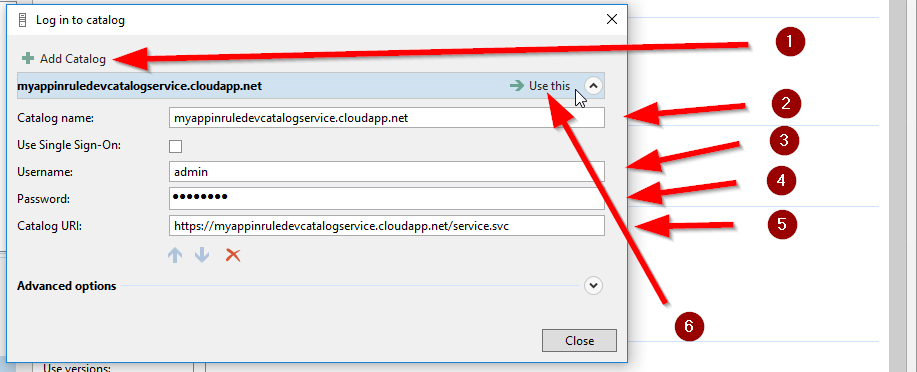
2: Choose Add Catalog, enter connection information for the Catalog Server that you deployed, and then select Use This.
3: Select the SalesforceRules rule app and hit Open

If the SalesforceRules rule app is there and opens without issue, then your catalog app service is good to go.
If the rule app does not appear as an option to open after connecting to the catalog, you can try the below steps as an alternative method of testing:
4: Download the SalesforceRules sample rule app.
5: Navigate to this file in your rule authoring environment and double click on it, this will open the file with irAuthor.

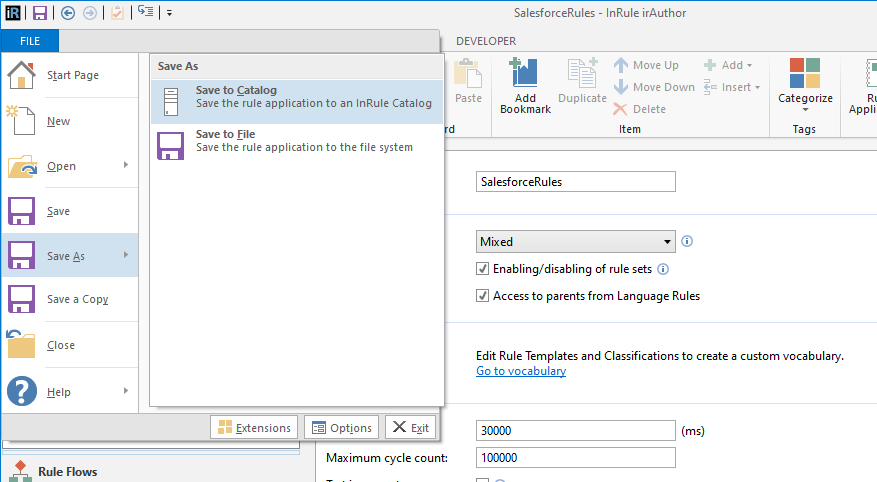
3: Save the Rule Application by choosing File → Save As → Save to Catalog
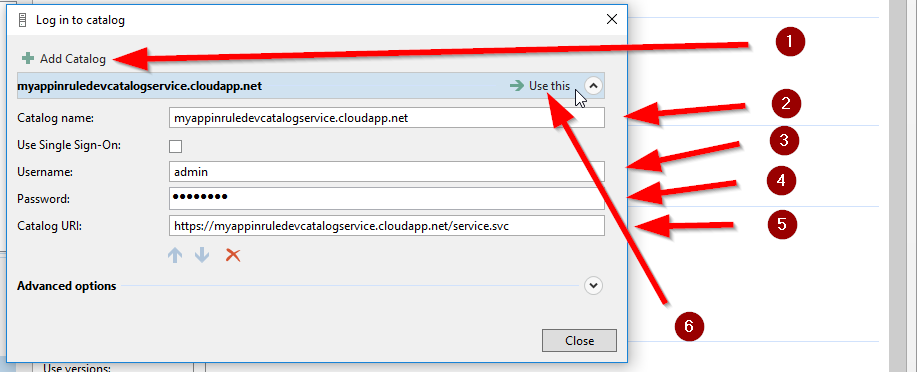
6: Choose Add Catalog, enter connection information for the Catalog Server that you deployed, and then select Use This.
7: Save with the name SalesforceRules
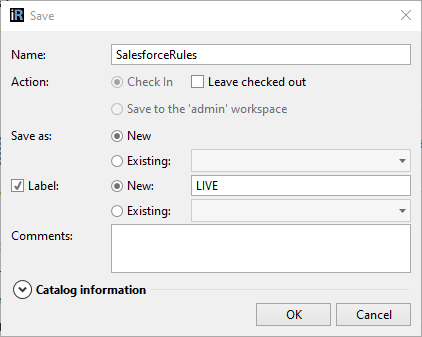
Save the Rule Application to the Catalog using the name of SalesforceRules. You must also be sure to provide the label, which needs to match the label configured on the Catalog Service.
At this point, if you can click OK without an error, you have successfully saved the SalesforceRules Rule App to the new Catalog that you have created.
If you have any trouble getting to this point, it is advised that you resolve any issues with the Catalog before attempting to continue.
Upload License File
Next, you'll need to upload a license file to the web app service in order for the Rule Execution App Service to properly function. The simplest way to upload the license file is via the Azure App Service Editor. Alternatively, you can deploy the license file via FTP. Walkthroughs of both these approaches can be found in License Management.