Known Issues, Limitations, and Troubleshooting
This portion of the document lists current known issues and limitations that may be encountered in usage of the Integration Framework. Most should only be encountered in limited edge cases.
In general, when beginning to troubleshoot a given issue, it is critical that you verify that you are running matching versions of irAuthor, the Rule Execution Service, and the InRule for Salesforce App. Mismatched versioning can be the root of a plethora of unpredictable problems. For more information on this and upgrading InRule components, refer to Redeploying and Upgrading Versions.
API Authentication to Salesforce
An authentication error response when attempting to login to Salesforce during rule execution is generally the result of a bad username, password, or security token. All three of these values must be properly configured to be able to authenticate.
You can test your ability to authenticate to Salesforce via API in a number of different ways, depending on your specific scenario:
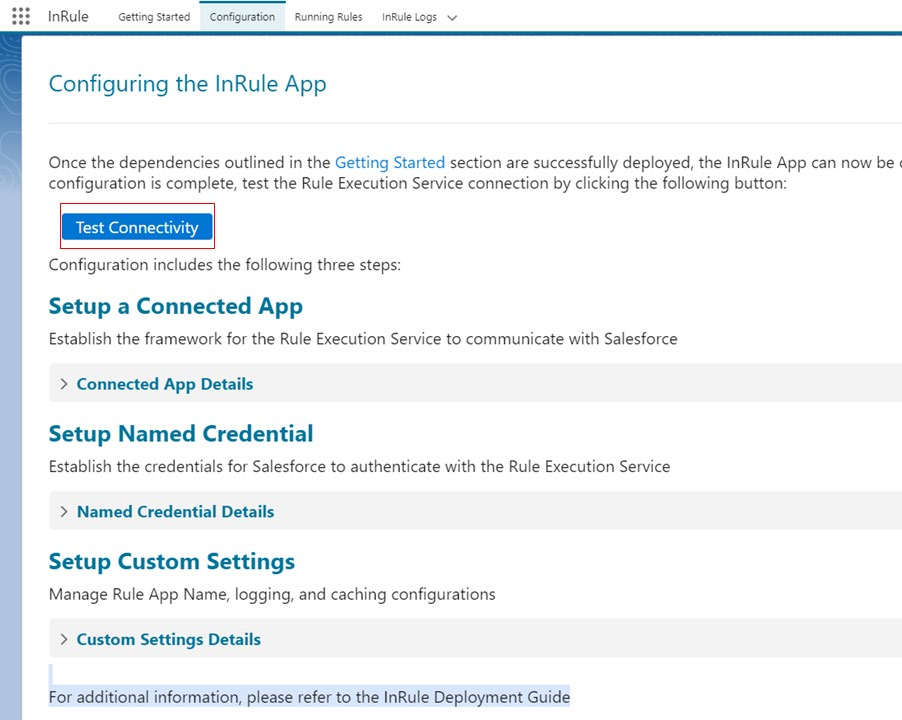
Within Salesforce, you can navigate to the InRule Configuration page and leverage the Test Connectivity button. This button will verify your execution service's ability to authenticate to Salesforce and provide more specific error handling in the event of an issue.
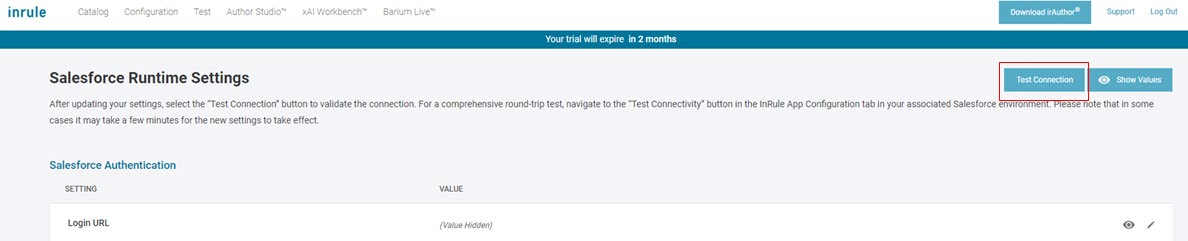
For SaaS customers, a similar Test Connectivity button can be found in the SaaS portal's Salesforce configuration section
Alternatively, you can leverage Salesforce's available collections to test authentication via Postman. These collections can be found here.
Security Tokens
A common cause of authentication issues is confusion around how Salesforce handles API security tokens. In most scenarios, security tokens are required. Security tokens are only optional in scenarios when the account attempting to authenticate is connecting from a Trusted IP address. Trusted IPs can be set globally, meaning any user that connects from an IP in the trusted range will be regarded as trusted, or on the Profile level, meaning that only users assigned to the given Profile will be regarded as trusted when connecting from an IP that falls in the trusted range. If the account in question does not fall in a configured Trusted IP range, it must have a security token configured.
Multi-Factor Authentication
Currently, service accounts configured to require multi-factor authentication (MFA) are not supported by Salesforce's authentication endpoint. As a result, MFA cannot be set to "required" for your service accounts, or authentication will fail.
Apex Callout Timeout
When calling out to an external system from Apex via HTTP, the maximum total communication time limit set by Salesforce is 120 seconds. Executing rules involves a single HTTP callout, and the framework is configured to use all 120 seconds for the timeout. If the timeout is reached, you will receive a "Read Timeout Error" when running rules. This can occur because of latency between Salesforce and the rule execution service, or anything else that causes the rule execution service to take more than 2 minutes to respond.
Salesforce API Limits
In order to maintain performance and availability, Salesforce has various limits on the number of requests that can be made to its API. Full documentation of these limitations can be found here, but as an example, in a Developer Edition instance, you are limited to 15,000 calls per 24-hour period. The rule execution service makes requests via the API to Salesforce to load and save data, and these will count against any limits, but these requests are batched to be as efficient as possible.
Multiple Collections with the Same Name
There is a known issue that causes a null reference exception to be thrown when loading entities that have multiple collections of the same name on them, with the only difference being capitalization. An example of this scenario can be seen below:
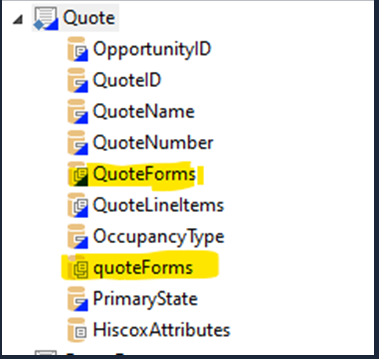
This is currently not a supported scenario; all collections on a single given entity need to have wholly unique names; differences in capitalization do not adequately distinguish the two collections as unique from each other.
Application Insights Location Error
Application Insights resources are not available in every region, the list of supported regions can be found in Microsoft's Product Availability. By default, the ARM template will attempt to deploy the App Insights resource in the resource group specified for the template deployment. If this resource group is in one of the unsupported regions you will get the following error:
New-AzureRmResourceGroupDeployment : 5:26:53 PM - Resource Microsoft.Insights/components 'ConnorArmTestAppInsights' failed with message '{
  "error": {
    "code": "MissingRegistrationForLocation",
    "message": "The subscription is not registered for the resource type 'components' in the location 'northcentralus'. Please re-register for this provider in order to have access to this location."
  }
}'
To fix this error we will have to choose a specific region for the Application Insights resource in the ARM template parameters file.
- Locate InRule.Salesforce.Service.parameters.json The ARM template parameters file is located in the RuleExecutionAzureService folder as, defined in Rule Execution App Service for Salesforce
- Create an "appInsightsLocation" parameter Open the file in your text editor of choice. First, create the appInsightsLocation" parameter at the bottom of the parameters file. Set the value equal to a region where Application Insights resources are offered.
"appInsightsResourceName": {
  "value": ""
},
"appInsightsLocation": {
  {
    "value": "SouthCentralUS"
  }
}
- Save InRule.Salesforce.Service.parameters.json and continue deployment Save and close the file. You can now proceed with the deployment process outlined in Rule Execution App Service for Salesforce as normal; your rule execution app service will now deploy to the App Service Plan you defined in the steps above
Performance
Azure Platform
The Rule Execution App Service for Salesforce can use either a 64-bit or 32-bit platform in Azure. As of v5.7.3, the configuring the platform will be managed in the Arm Template and will be based on the app service plan. Using the 64-bit platform requires a Basic or higher app service plan, so when a Basic or higher app service plan is used in the Arm Template, the Rule Execution App Service will be deployed with the 64-bit platform. Otherwise 32-bit is used.
Apex Trace Log
When troubleshooting performance issues, the InRule Log entity included with the package provides detailed metrics to help analyze the various components of rule execution performance. At a high level, the logs provide run times for the various execution steps. The 'Information' section of the log form includes a field for 'Execution Time', which is the total run time for the Apex rules method. In addition, the InRule log also provides a more detailed breakdown of steps in the trace text. These are broken into Execution Service and Save Time.
Execution Service time will typically be longer, as this includes communication latency over HTTP, loading of additional entity data, and execution of rules. Save time will not always show up in trace logs, but if any entity changes come back from rule execution the time needed to save them will be reflected here. The trace log will also include a message noting the number of entities returned from the execution service for saving. This saving should not take much time for a handful of entities but can take several seconds for large change sets.
For a further breakdown of the data loading and execution time from the rule execution service, the 'Info' level event logs for the App Service can be accessed through the Azure Portal.
Included below is a sample trace log that includes these features.
Starting rule execution

Sending request to rule execution service at
callout:InRule_Rule_Execution_Service/SfRuleExecution.svc/ExecuteRulesFromPlugin?eventType=update&id=0018A00000cPk1CQAS&entityName=Account&ruleAppName=SalesforceRules&ruleSetName=RuleSet1&ruleAppLabel=&appDomainCache=0.0
Received response from rule execution service
Execution Service Time: 3,221ms

Saving 4 changes to Salesforce
Processing change -- Insert on entity ID 73c95b94-df07-44c6-8895-fcbc3c422a3c -- type Contact
Processing change -- Insert on entity ID 01737977-eb66-46c9-89d2-2d1c94756e7d -- type Account
Processing change -- Insert on entity ID 6ed24d2a-77dd-497b-ac7c-4b692f9e8f6c -- type Case
Processing change -- Insert on entity ID 3cb009a2-a3e8-46d6-a368-e3892511b39a -- type WorkOrder
Save Time: 676ms

Exiting rule execution
Request and Response Message Size Limitations
Salesforce includes a variety of different governors to track and enforce limits on resources used by Apex. One of these is request and response size limitations to HTTP callouts. Salesforce sets this limit at 12 MB for both requests and responses. These limits should not commonly be exceeded, but if you get this error during rule execution, try to reduce the number of notifications, validations, or entity changes you are making in a rule set. These are all returned in the response for processing, and reducing these can reduce the response message size.
Enable Background Compilation
This setting controls whether the download, compilation, and caching of updates to rule applications from the catalog is handled on a background task. When enabled, rule execution will not be blocked while updating the rule app and will instead run immediately against the currently cached version. Self-hosted tenants should ensure this value is set to true for their deployment to avoid unnecessary catalog overhead. For additional information, please view the documentation available on the Configuration Overview page.
Batch Processing
InRule rule execution is primarily oriented at the level of an individual transaction for a given entity context. This is relatively straight-forward when rules are based on an entity event or on-demand process - for example, Validate Account or Qualify Lead. In other scenarios, there may be a desire to execute rules across multiple entities that are related to a logical parent at a point in time - for example a tranche of Loans or Leads from a Tradeshow. In this case, InRule's collection handling is well suited to load and execute rules against multiple entities based on the relationship to the parent rule entity. The multiple entity scenario works well up to a point. The primary consideration is that all of the entity data is processed in a single rules execution request that can result in the loading and saving of hundreds to thousands of entities.
If the entity count for a rule execution request is expected to be upwards of 1,000 to 10,000+ entities and these entities represent individual transactions, it's advisable to reassess, measure throughput and potentially consider batch approaches. At this time, neither Salesforce nor InRule have a one-size-fits-all solution for managing high-volume batch operations. However, in these scenarios, parallel rule execution for a large number of transactions can be achieved by employing common batch solution techniques and tools. The end goal is to establish a solution where a batch process will manage the iteration across the primary entities (e.g. Leads for a Tradeshow) and issue execution requests to the InRule Rules Engine Action for either individual Leads or smaller groups of Leads.
Disabling State Refresh
Disabling the state refresh option could improve performance for applications with many RuleHelper calls. State refresh is configured for both .Net Assembly Function Libraries, and User-Defined Functions.
.Net Function Assembly Libraries
To disable state refresh for .Net Assembly Function Libraries, begin by navigating to the Endpoints tab in irAuthor. Once there, select the function library containing the function you wish to disable state refresh for.
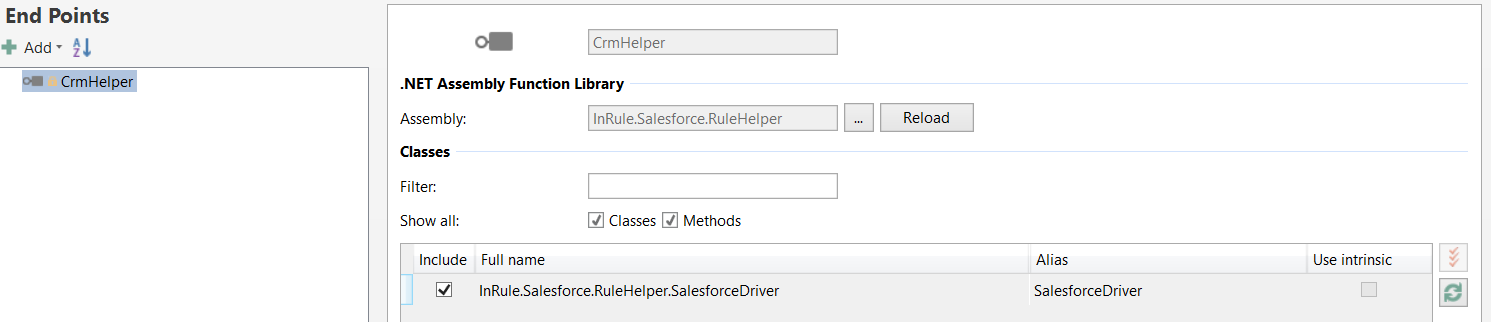
Select the function being updated from the list and then click the refresh icon on the right.
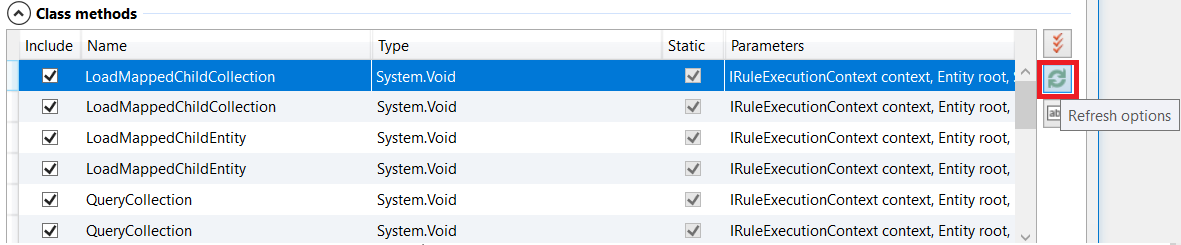
A Refresh Options pop-up should appear – locate the "Refresh all bound objects" checkbox and uncheck it. Click OK.

State refresh should now be disabled for this function.
User-Defined Functions
To disable state refresh for User-Defined Functions, begin by navigating to the User-Defined Functions tab of your app in irAuthor. Once there, select the function you wish to disable state refresh for and click the "Modify state refresh options" link under the State Refresh Options section.
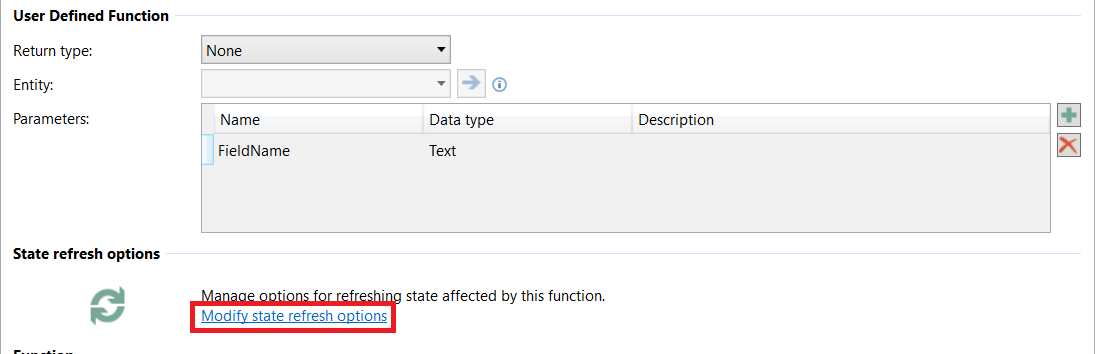
A State Refresh Options pop-up should appear. Deactivate the "Enable full refresh of all bound objects" checkbox and lick Ok.

State refresh should now be disabled for this function.