Azure App Service Plan & Application Insights Configuration
Azure App Service Plan Overview
The Salesforce Rule Execution Azure App Service runs on an Azure App Service Plan. The ARM Template deployment process outlined in Rule Execution App Service for Salesforce will, by default, automatically deploy an App Service Plan for you.
This App Service Plan will be deployed to the subscription and resource group provided during the deployment process. Additionally, the plan will be configured with a "F1" (Free) pricing tier, but this can be increased based on your scaling and configuration needs.
If you leave the ARM template configured to re-deploy the App Service Plan, updating an existing one, the pricing tier of that App Service Plan will be set to the default pricing tier, regardless of what it may currently be set to. If you do not wish the pricing tier to be reverted to default, it is recommended you follow the steps below.
Should you wish to use a pre-existing Azure App Service Plan rather than have a new one created for you, a few configuration steps within the ARM template parameters file are necessary.
Configuring the ARM Template to Use an Existing Azure App Service Plan
1: Locate azuredeploy.parameters.json
The ARM template parameters file is located in the RuleExecutionAzureService folder as, defined in Rule Execution App Service for Salesforce
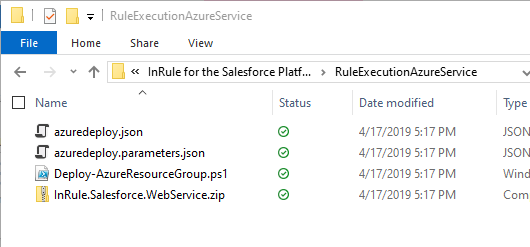
2: Populate "appServicePlanName" parameter
Open the file in your text editor of choice. First, populate the "appServicePlanName" parameter. Set the value equal to the name of your app service plan.
},
"appServicePlanName": {
  "value": "yourAppServicePlanName"
}
3: Set "createOrUpdateAppServicePlan" parameter
Next, just below the "appServicePlanName" parameter be sure to set the parameter called "createOrUpdateAppServicePlan" to false
},
"appServicePlanName": {
  "value": "yourAppServicePlanName"
},
"createOrUpdateAppServicePlan": {
  "value": false
}
4: [Optional] Create "servicePlanResourceGroupName" parameter
In the event the App Service Plan you intend to use is located in a different resource group than the one you are deploying the ARM template against, you need to add a parameter to inform the ARM template what resource group your App Service Plan is in. Create the "servicePlanResourceGroupName" parameter as shown below and define the value as the name of the resource group your App Service Plan exists in.
},
"createOrUpdateAppServicePlan": {
  "value": false
},
"servicePlanResourceGroupName": {
  "value": "yourResourceGroupName"
}
5: Save azuredeploy.parameters.json and continue deployment
Save and close the file. You can now proceed with the deployment process outlined in Rule Execution App Service for Salesforce as normal; your rule execution app service will now deploy to the App Service Plan you defined in the steps above
Azure App Insights Overview
For improved logging capabilities, the Salesforce Rule Execution Service is configured to use an Azure App Insights resource as a logging sink in addition to the logging the App Service itself already has. ARM Template deployment process outlined in Rule Execution App Service for Salesforce will, by default, automatically deploy an App Insights resource for you.
The app insights resource will aggregate all the logs generated from the execution service. These logs can be tremendously useful for debugging any issues encountered with the Rule Execution Service. Depending on the level of event logging configured for the Rule Execution Service Event Log, these logs can add insight into rule executions, entity loading, overall execution timing, and any errors encountered during rule execution.
App Insights in non-Standard Azure Instances (Government Cloud)
If this is your first time deploying the arm template and you would like for the template to create the app insights resource for you, no other configuration is required.
However, if you would like to use a pre-existing app insights resource then you need to set the appInsightsInstrumentationKey and the appInsightsConnectionString for that resource in the azuredeploy.parameters.json. Then proceed with the rest of the deployment steps outlines in Rule Execution App Service for Salesforce