InRule SaaS Portal Configuration
InRule SaaS offers customers the most streamlined deployment process, eliminating the need to install and manage the InRule App Services in Azure, as InRule will manage the deployment of the Rule Execution Service for Salesforce for you. SaaS customers are also able to use their SaaS portal to access the information needed for configuring the InRule App for Salesforce and provide Service Account credentials for the SaaS-hosted Rule Execution Service to connect to a Salesforce environment.
Access Solution Configuration Information
SaaS Customers can find the information needed for configuring the InRule App for Salesforce through the Configuration page of their SaaS portal. This page will have a section for each Rule Execution Service instance hosted for the customer by InRule. Please note that only the Salesforce Runtime Settings are currently used by the Salesforce Execution Service. In a future release, settings from the Execution Server Settings section will also contribute to the Salesforce Execution Service. In the interim, if you need any of those settings changed, please reach out to InRule Support.
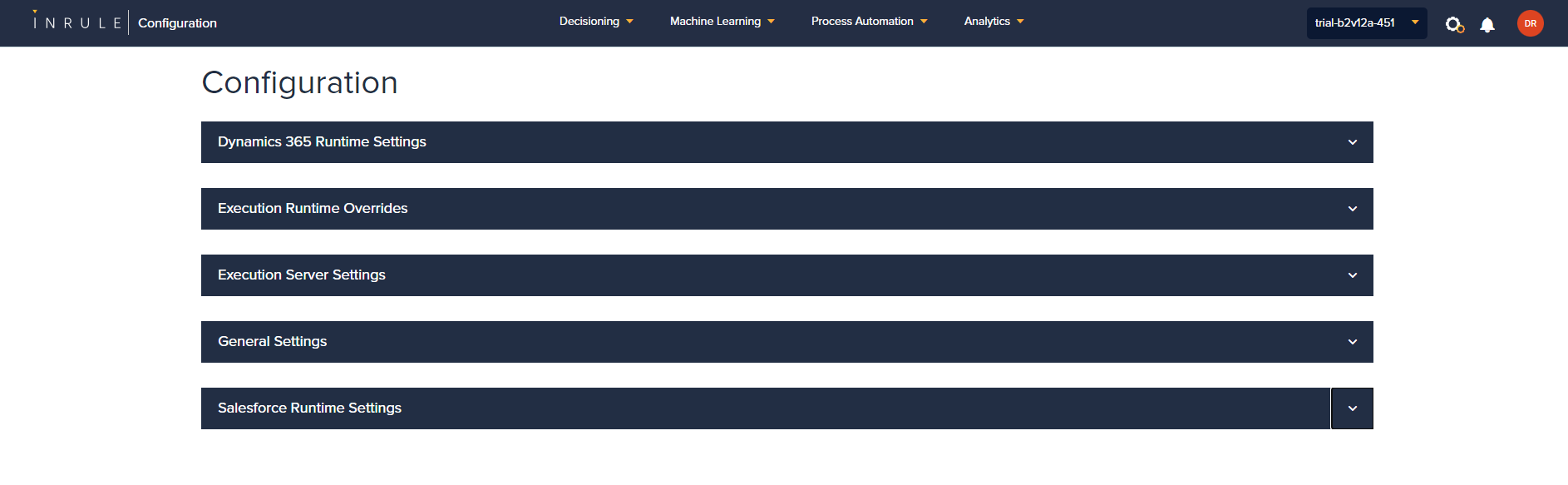
Additional configuration information can be located on the Provision Resources page available rom the cogwheel icon in the top right corner of the SaaS portal.

The Provision Resources screen is where you can find read-only configuration information such as the Rule Execution Service URL and the Rule Execution Service API Key.
Providing Connection Information
Clicking the drop down arrow for a Salesforce section will allow you to provide connection information that will allow the SaaS-hosted Rule Execution Service to interact with your Salesforce environment. You must configure authentication information for both Salesforce and for your Rule Execution Service
Salesforce Authentication
To authenticate to Salesforce using Client Credentials flow, you must configure the login URL to be the login URL to your actual Salesforce organization (e.g., https://yourOrgName.com/services/oauth2/token).
Additionally, you will need both the consumer key and the consumer secret associated with the Connected App you created as a part of Configure the InRule App.
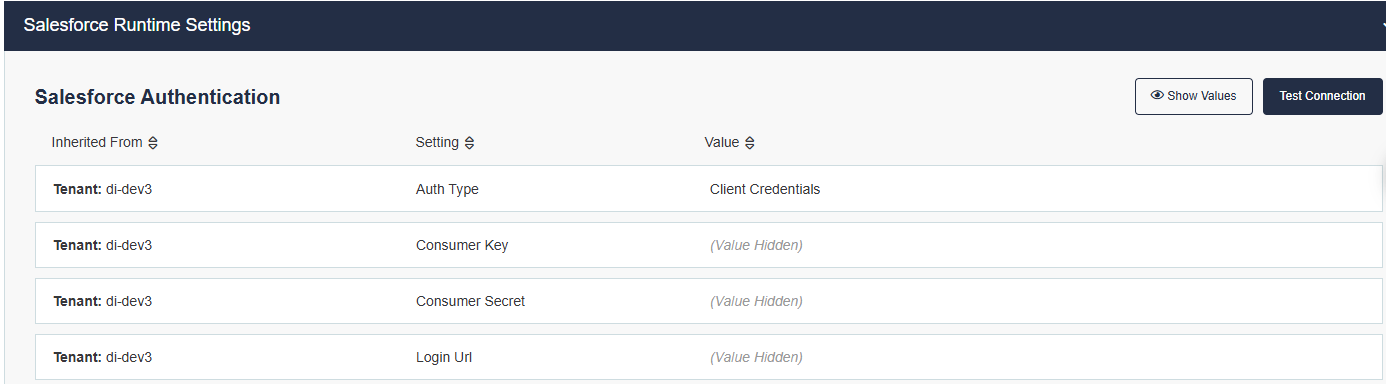
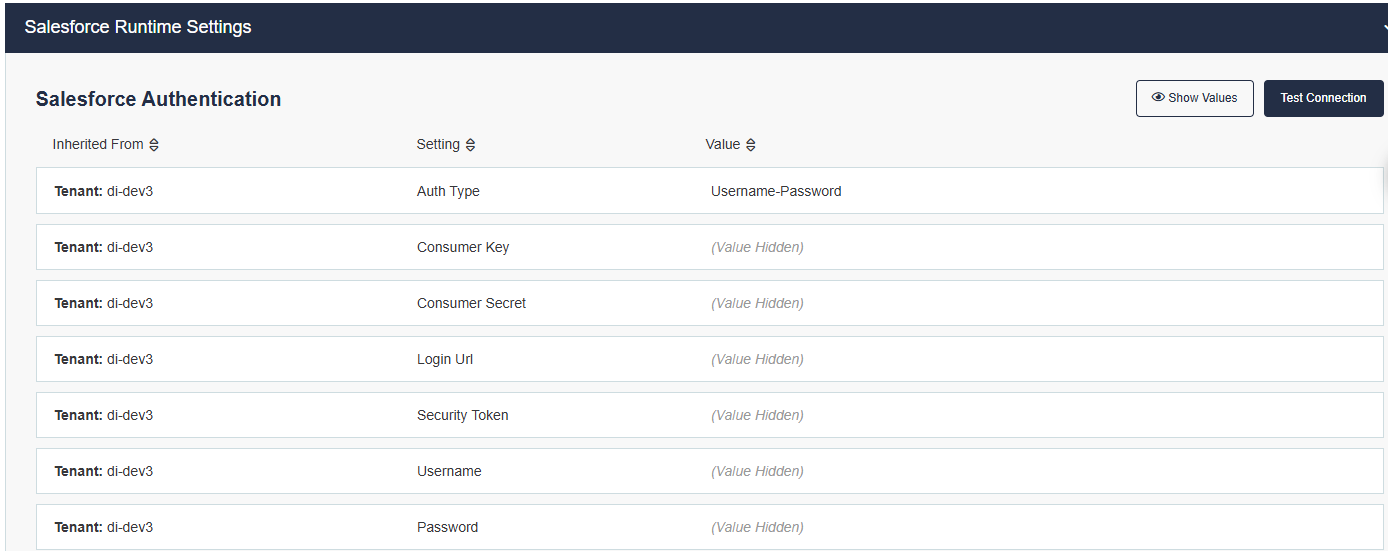
If you are using Username-Password flow, you will need to include a valid username and password as well as a security token which is found on the Salesforce user trying to authenticate. Unlike the Client Credentials flow, the login URL here can be set to a Salesforce host domain like login.salesforce.com/services/oauth2/token or test.salesforce.com/services/oauth2/token
Rule Execution Service Authentication
This configuration section defines the authentication type that will be used by Salesforce to authenticate to the Rule Execution Service. Currently, the supported authentication types are API Key and a legacy username/password basic authorization. Support for the basic auth configuration will be discontinued at an unspecified date in the future. If using the basic auth configuration, you will additionally need to supply a value for the username and password settings.
On the Salesforce side, the same credentials will need to be configured on the Named Credential described in Configure the InRule App.

Endpoint Override Configuration (Optional)
As of version 5.5, InRule for Salesforce now supports Overriding Endpoint Configuration via Azure App Service App Settings. This allows for the overriding of various endpoint settings configured on a rule app, such as REST API URLs or Database Connection Strings, by setting App Settings on your execution service App Service.
To set an endpoint override on your app service, simply navigate to your rule execution app service, go to the Configuration view, and click the drop-down arrow for Execution Runtime Overrides.
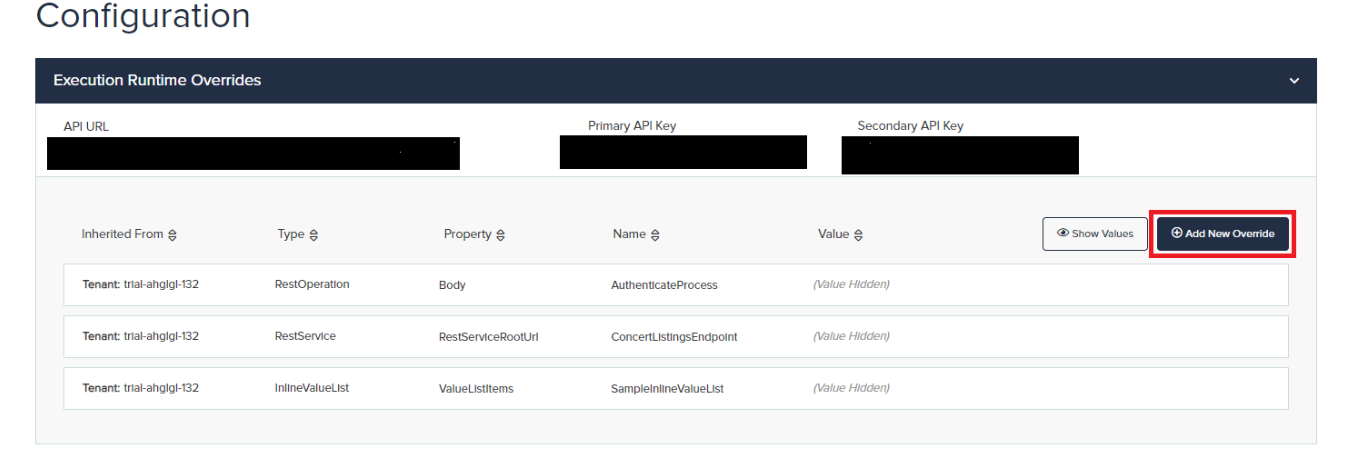
Click the Add New Override button:
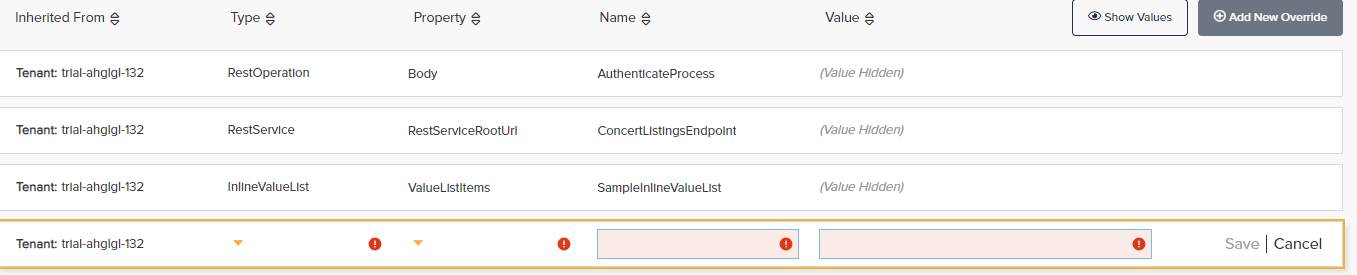
Click the drop-down arrow under the Type column and select the corresponding type for your override. The Property column should auto-populate for you. Note that there is a drop-down arrow on the Property column as well – some Types have multiple properties for you to choose from.

Your endpoint name should match the name of the endpoint in the rule app you wish to override.
The value of the override would then be set to whatever value you wish to override with.
Below is what a properly configured end-result would look like, using an InlineValueList override as an example:

Once your override is set, simply save the changes to your app service. Upon the next execution of rules, the specified endpoint type will be overridden with the supplied value.