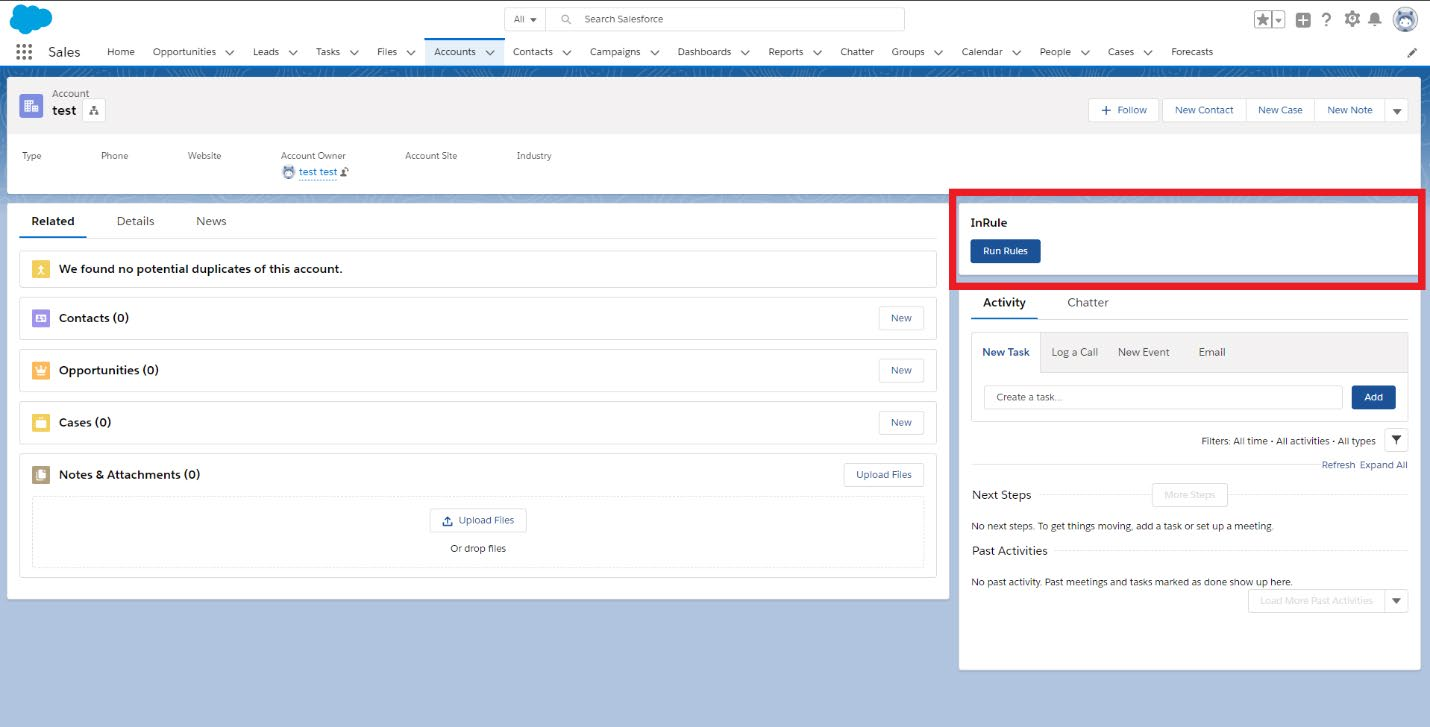
Adding a Lightning Button
Navigate to the entity you wish to add the button to, note that you will have to add the button to each entity individually.
Once on the desired entity page find the settings icon in the top right corner and select Edit Page.
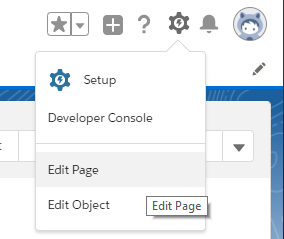
On the left-hand side of the page in the Lightning Components section scroll to the bottom of the page until you find the InRule_RunRules in the Custom-Managed Section


If you have not setup your Salesforce domain, you will see this message in the Custom-Managed Section.
Simply follow the link to setup your domain. Once it has been set and you have logged in with the new domain come back to edit page and you should now see the InRule_RunRules Lightning Component.
Drag the window to the desired location on the page view. Once you have placed the component, click on it and a menu bar on the right will appear three two available configuration values.
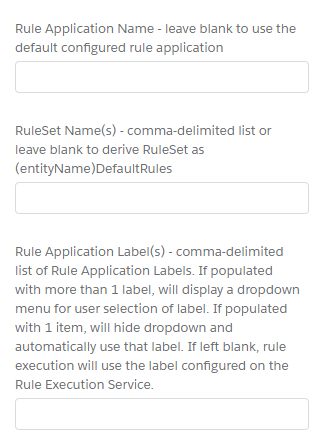
The first configuration field, Rule Application Name, allows you to define a Rule Application to use for this specific lightning component. Placing a value in this field will override the Rule Application you have defined in your Custom Setting as the default. Leave this field blank to use the default configured Rule Application.
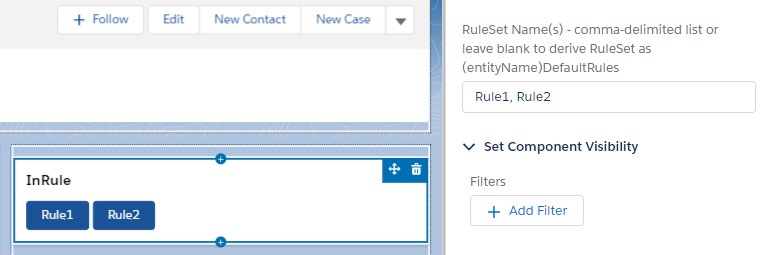
The "Rule Set Name(s)" field accepts a comma delimited list of Rule Set names. Adding multiple rule sets here will create multiple Run Rules buttons for each defined Rule Set on the page. Leaving this field blank will leave only the singular "Run Rules" button, and this button will execute the Default Rule Set for the given entity. The Default Rule Set is defined as the entity's name + "DefaultRules." For example, if you are adding the Lightning component to the Account entity, the Rule Set name it will default to if this field is left blank is "AccountDefaultRules."
If no Rule Sets are defined, will create 1 button that uses the default Rule Set for the entity:
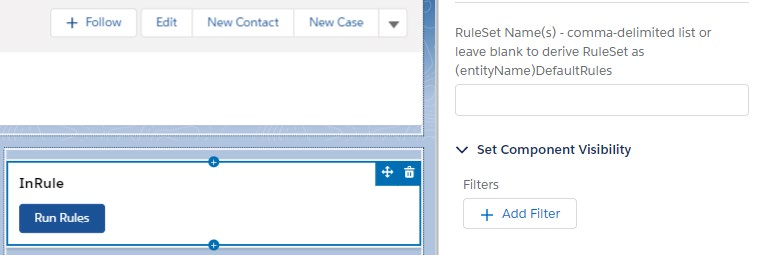
If one Rule Set is defined, will create 1 button that will use that defined Rule Set:
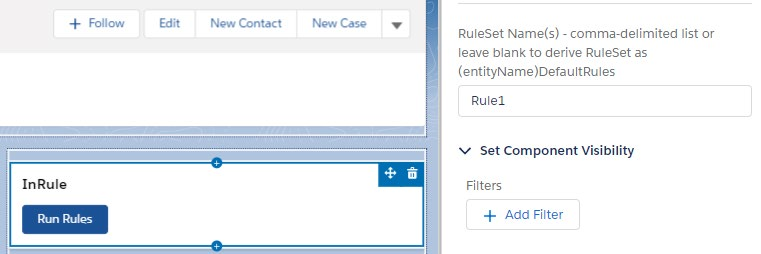
If 2+ Rule Sets are defined, will create a button per Rule Set that will use the defined Rule Sets.
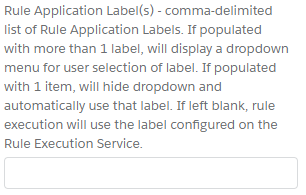
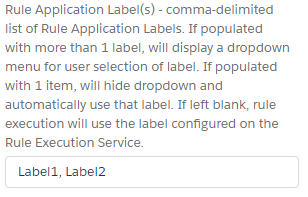
The last configuration field accepts a comma-delimited list of Rule Application Labels. This allows for overriding the Rule Application Label defined on the Rule Execution Service and providing users the ability to change what label to run rules against from the defined list of options.
When no Rule Application Labels are defined, the Run Rules button appears as normal and rules will be executed against the label configured on the Rule Execution Service:
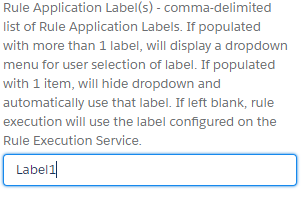
If one Rule Application Label is defined, the Run Rules button appears as normal and rules will be executed against that defined label:
If more than one label is defined, a dropdown box will appear underneath the Run Rules button that allows users to select what label to run rules against. All defined Rule Sets and their associated buttons will execute against the selected label:
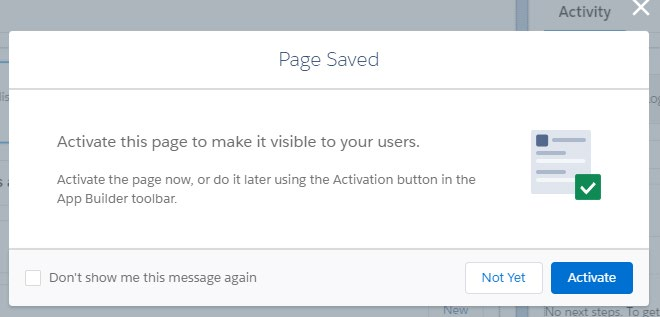
Once you have configured these fields, click save in the top right corner. It will prompt you to activate this page to make it visible to your users, click activate.
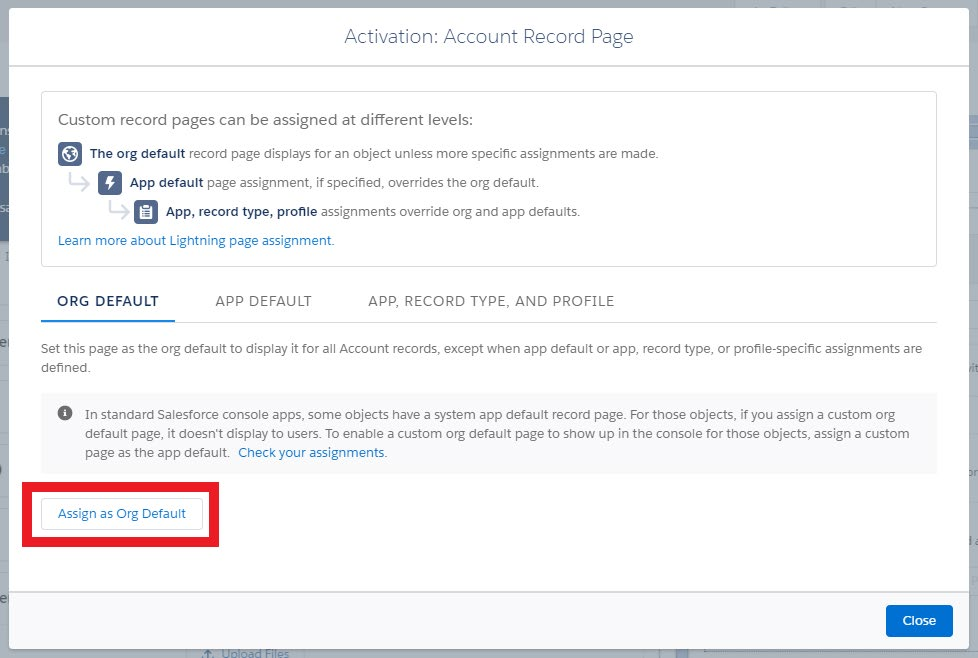
Salesforce will now ask for the scope to activate the record page. Select the desired scope and click Assign and then save on the subsequent prompt.
Navigate back to the main entity page and the component should appear.