Testing With a Dynamics 365 Record
InRule provides a full featured testing tool called irVerify® which you can use to test and verify your Rule Applications. irX for Microsoft Dynamics 365 allows you to obtain test data directly from a Microsoft Dynamics 365 instance so that you do not need to enter that test data manually.
irX for Microsoft Dynamics 365 provides the following functions for testing your Rule Application:
- Testing With a Dynamics 365 Record: Test the rules against a single record from Microsoft Dynamics 365
- Regression Testing With Dynamics 365 Records: Run multiple Microsoft Dynamics 365 records through the rules and then compare the results to a set of assertions
- Updating a Regression Test Suite: Update data stored locally in Test Suites with the latest values available in the Microsoft Dynamics 365 instance
InRule provides a default Rule Application that can be useful for familiarizing yourself with testing Rule Applications.
For detailed information on how to use irVerify, refer to the InRule Help, Author Version.
Select the Entity Type to Test
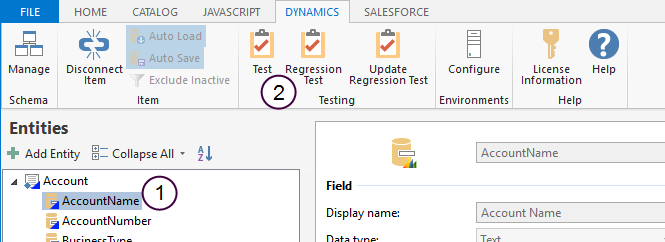
- To create a Test Session using a Microsoft Dynamics 365 record, first select the Entity you wish to test. To do this, select the Entity or one of its children either in the irAuthor Entities view or the irAuthor Rules View. This screen shows the Entities View.
-
On the DYNAMICS ribbon tab, click the Test button. The Select Microsoft Dynamics 365 Environment window appears.
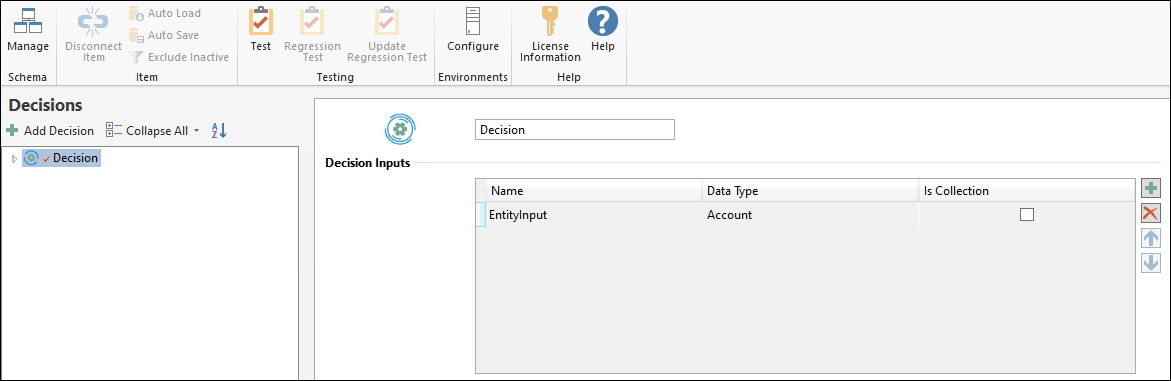
If testing a Decision, select the Decision and set the Entity Type as the Data Type of the first input. Then click the Test button for the Microsoft Dynamics 365 Environment window to appear.
Select the Microsoft Dynamics 365 Environment
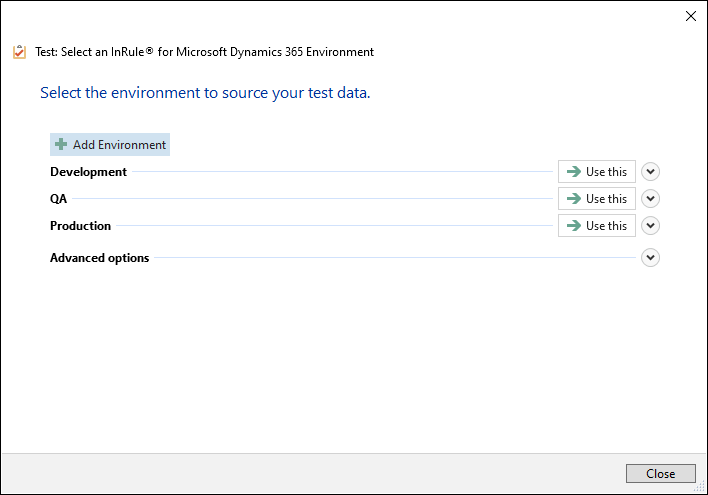
Select the environment you want to use to update the Test Suite by clicking the "Use this" button.
Select Record
Use the Select Test Data window to select the Microsoft Dynamics 365 record for your test data.
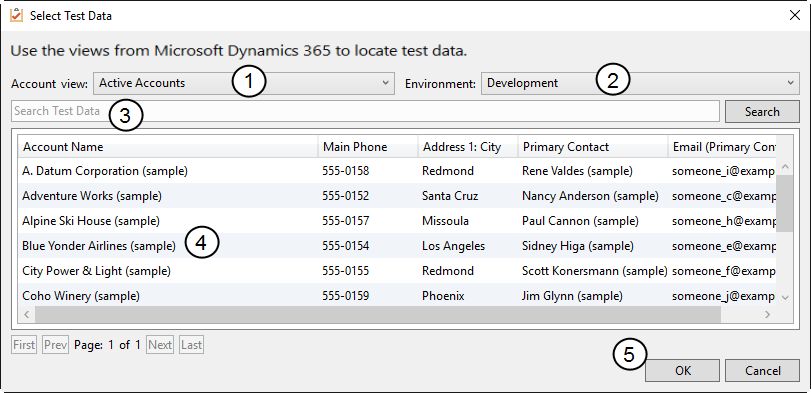
- Use the view selection drop-down, here called "Account view," to select the view you want.
- Select the appropriate Microsoft Dynamics 365 environment.
- If needed, narrow the list by searching for the record(s) you want.
- Select the row for the Microsoft Dynamics 365 record you want.
- Click OK.
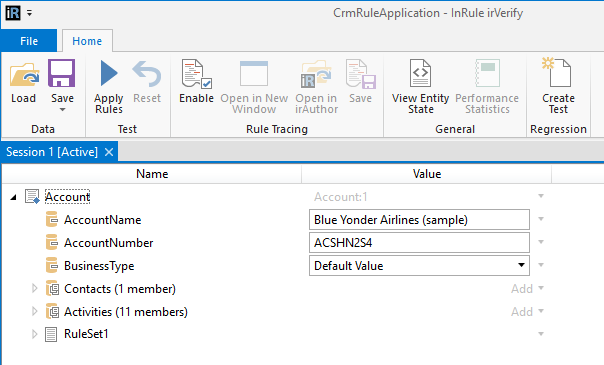
Proceed with your testing.