Refreshing Dynamics 365 Items
Since the Adding or Updating Entities capability does not force a refresh from the Microsoft Dynamics 365 server you can click the Refresh button to make sure the latest information is available in the Configuration Wizard. This will force a call to the Microsoft Dynamics 365 server and will update the imported irAuthor items accordingly. Any items such as Entities and Fields that were created manually and not sourced from Microsoft Dynamics 365 will be left unchanged by the refresh.
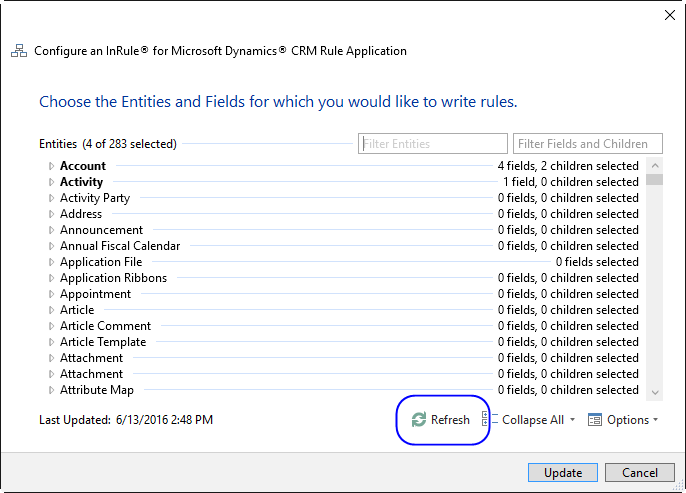
Confirming the Refresh
The refresh will notify you of the changes it is about to make. For example, take the following simple Entity model:

On the server, Account Num has been removed and Customer Num has been renamed. When the Refresh button is clicked, the following confirmation screen appears:
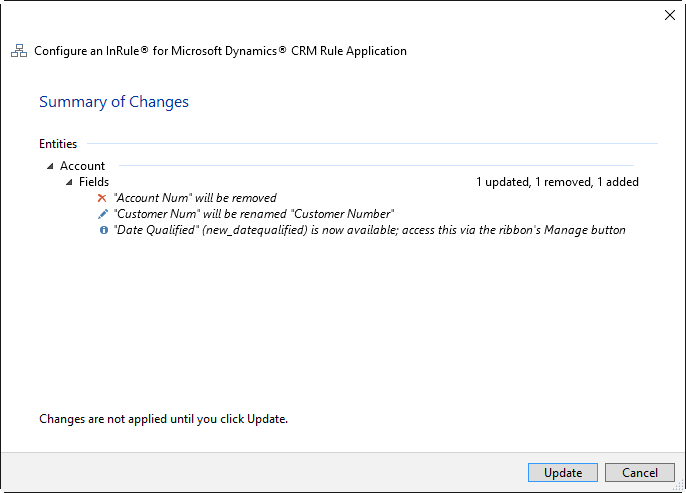
The confirmation screen provides an opportunity to opt out of the changes by clicking Cancel. Opting out of the changes can be especially important if you accidentally specified a refresh from the wrong Microsoft Dynamics 365 environment.
Note: Newly added Fields in your Entities, such as "Date Qualified" above, are not automatically added to your Rule Application. To add them, use the Select Entities pane.