Selecting Dynamics 365 Entities and Fields in irAuthor
This section describes how to use the Configuration wizard to select the Entities, Fields and one-to-many relationships to use as the foundation of a Rule Application.
The Select Elements Screen
-
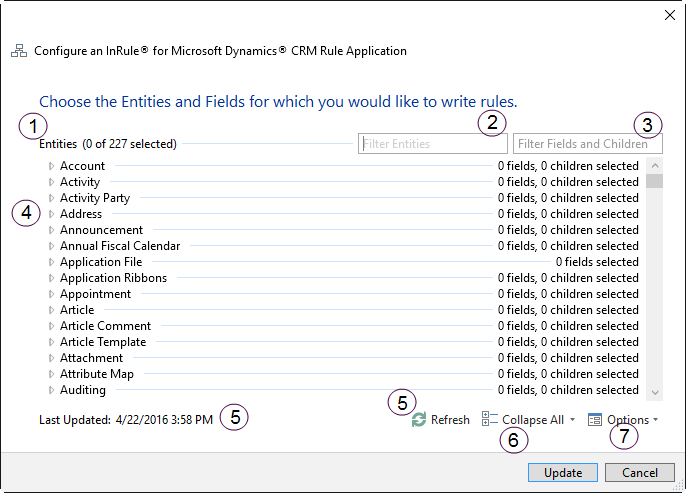
The top node of the Entity tree shows the number of Entities that one or more elements (Fields or one-to-many relationships) selected underneath it.
-
The Filter Entities box allows you to narrow the list of Entities that are displayed by typing text. The list will shrink or grow automatically as you type or remove letters into the box.
-
The Filter Fields and Children box allows you to narrow the list of items displayed underneath each individual Entity.
-
The Display Name for each Entity is displayed as a node in the tree and is the name that will be used for the Entity in irAuthor. The display name will be used for the Field or relationship in irAuthor and the actual Microsoft Dynamics 365 name will be stored as an attribute in irAuthor for updates. When an Entity node is collapsed, the number of selected Fields and children that are selected underneath it are displayed. The name of an Entity with at least one Field or relationship selected will also appear in bold to give it added visual distinction. If the Entity does not have any one-to-many relationships then only the number of Fields selected will be shown.
-
Because the Microsoft Dynamics 365 metadata can take some time to download, irX for Microsoft Dynamics 365 establishes a cache so the download is not required every time you use irAuthor. This screen shows the date and time this cache was last updated. If the metadata has changed since this date, click Refresh to update the cache. See Refreshing Dynamics 365 Items for more information.
The metadata cache is removed whenever the irX for Microsoft Dynamics 365 environment URL changes, or when irX for Microsoft Dynamics 365 is uninstalled. If you should ever need to remove the cache manually, it is stored in the
%APPDATA%\Roaming\InRuledirectory. -
The Expand All and Collapse All buttons allow you to fully expand or collapse the tree. Click the drop-down arrow in the Collapse All button to expose the Expand All button. Note that due to the large number of Entities in Microsoft Dynamics 365, expanding the entire tree may take several seconds and cause irAuthor to appear unresponsive.
-
The Options drop-down menu exposes two checkboxes which allow you to customize which Entities, Fields, and children are displayed.
The Show selected only checkbox allows you to see just the Entities, Fields and relationships that have been selected. This is often used to preview the entity model that will be constructed in irAuthor once the Finish button is clicked.
The Show children marked 'Do Not Display' checkbox will include Dynamics 365 relationships in the Children subfolders, even if those relationships have been marked "Do Not Display."
Note: If items have been changed on the Microsoft Dynamics 365 server and those changes are not reflected on the screen, refresh the Microsoft Dynamics 365 items to get the latest.
Selecting Fields & Relationships
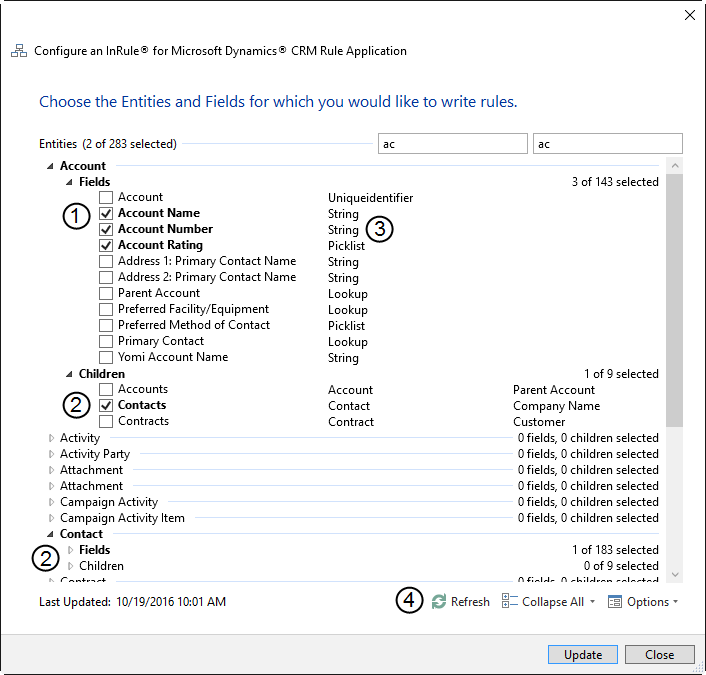
- Each Field and relationship is identified by the display name specified in Microsoft Dynamics 365. The display name will be used for the Field or relationship in irAuthor and the actual Microsoft Dynamics 365 name will be stored as an attribute in irAuthor for updates. Use the checkbox to the left of each item to select it. Selected items appear in bold for additional visual distinction.
- Lookup Fields and children (one-to-many relationships) in Microsoft Dynamics 365 point to other Entities. Because of this when you select either of those types of elements, the Name field on the related Entity is automatically selected. At least one Field on the related Entity must be selected so that the connection can be created in irAuthor. If you unselect all of the Fields on a related Entity a warning message will appear stating that the Lookups or Children will be unselected on any other Entity referencing that one. You have the option whether or not to proceed with your changes.
- Each Field has its Microsoft Dynamics 365 data type listed to the right while each Child (one-to-many relationship) has the related Entity's display name displayed on the right. See the article How Dynamics 365 Data Types Are Mapped for more information on how various Fields and Entity types are handled in irAuthor.
- Because the Microsoft Dynamics 365 metadata can take some time to download, irX for Microsoft Dynamics 365 establishes a cache so the download is not required every time you use irAuthor. This screen shows the date and time this cache was last updated. If the metadata has changed since this date, click Refresh to update the cache. See Refreshing Dynamics 365 Items for more information.