Adding or Updating Dynamics 365 Entities, Fields, and Collections
To add new Entities to your InRule Entity model or to add Fields or Collections to specific Entities, click the Manage button in the ribbon's Schema group. After you select an environment, if irAuthor has not already pulled the Entity information from the Microsoft Dynamics 365 environment, it will do so. The Configuration Wizard will then be displayed with any Entities, Fields and Collections from the Entity model pre-selected. See the Selecting Dynamics 365 Entities and Fields in irAuthor section for more information on using the Configuration Screen.

How Items Deleted on the Microsoft Dynamics 365 Server are Handled
Prior to opening the Configuration Wizard screen, irAuthor will check if any of the Fields in the Entity model have been removed from Microsoft Dynamics 365. If so, a screen will display the Entities and Fields that will be removed from the irAuthor Entity model if you proceed with update.
For example, take the following simple Entity model:

On the Microsoft Dynamics 365 Server, Account Num has been removed. When the Manage button is clicked, the following confirmation screen appears:
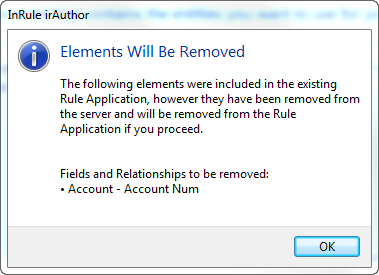
If you do not want the items removed (e.g. you accidentally specified the wrong Microsoft Dynamics 365 instance on the prior screen) then click OK on the notification screen and Cancel on the Configuration Wizard.
How Items Modified on the Microsoft Dynamics 365 Server are Handled
When the display name of Entities, Fields and Relationships are changed or Option Set items are added, removed or changed those changes will be made to the appropriate items in irAuthor.
Note: Changes made manually to the Names, Display Names or Value Lists of items sourced from Microsoft Dynamics 365 are not supported and will be blown away during an update. Any items such as Entities and Fields that were created manually and not sourced from Microsoft Dynamics 365 will be left unchanged by the update.