Setting Up an IIS Application Pool for Dynamics 365
Before a website can be setup to host the catalog web service, a suitable application pool needs to be created. Any IIS server will already have a DefaultAppPool that can be used; whether this section is necessary will depend on your organization's architecture and requirements.
1: Open IIS Manager
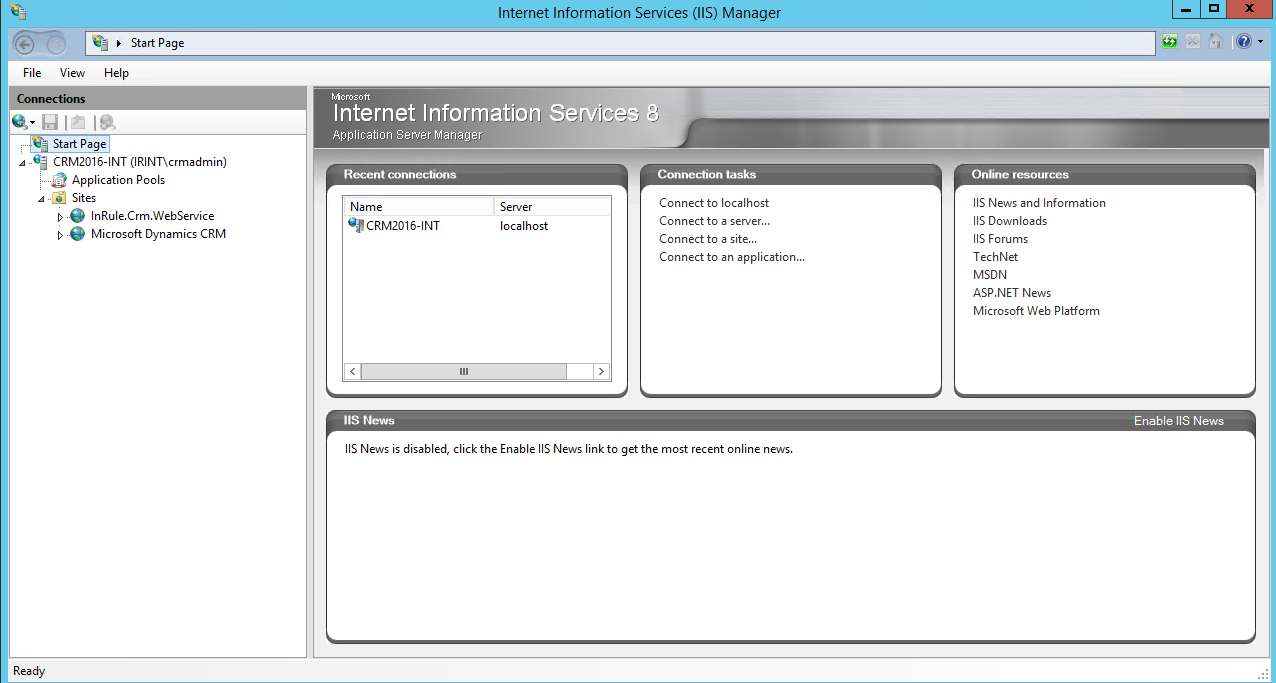
2: Click on Application Pools on the Left-Hand Nav Pane
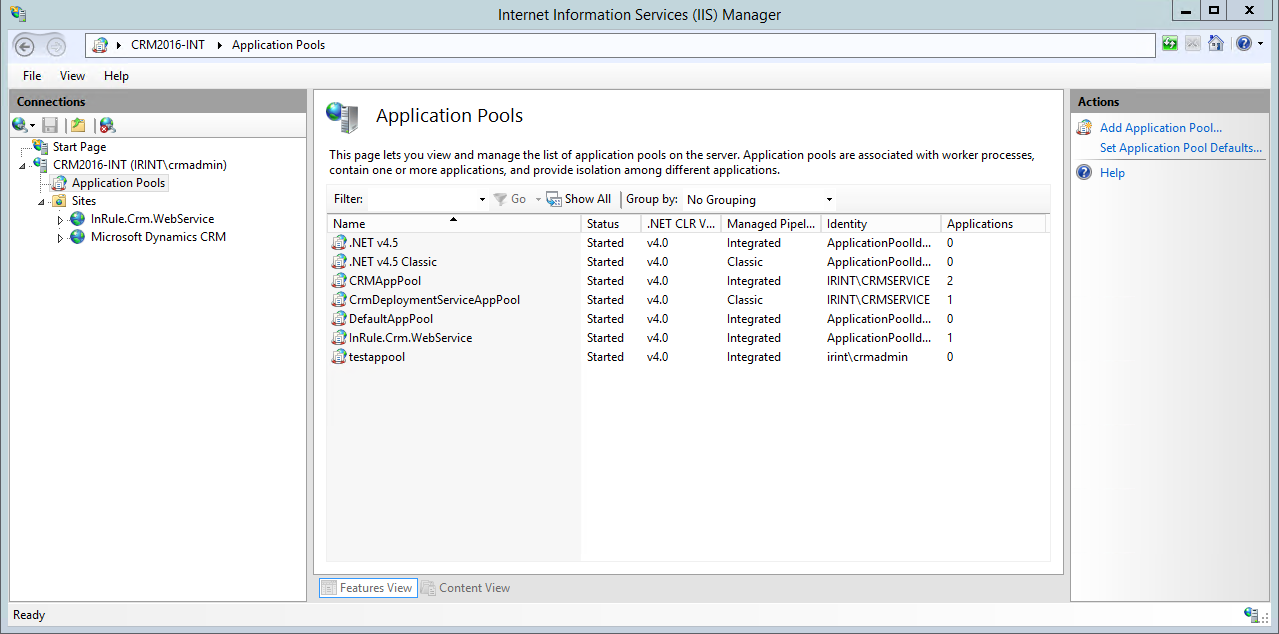
3: Click "Add Application Pool" Under "Actions" in the Right-Hand Pane

4: Define a Name for the Application Pool and Create
.NET CLR Version and Managed pipeline mode should be left as their default values. Press OK

5: Click on the New App Pool and Select "Advanced Settings" on the Right-Hand Pane
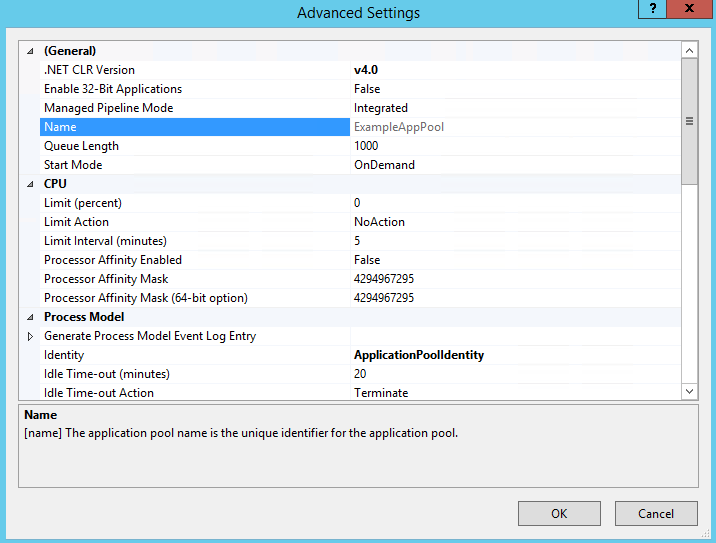
6: Under the "Process Model" Header, Select the Small "…" Button Next to the "Identity" Property

Here you can select what kind of identity model you want to use for your application pool. You'll want to either use the Application Pool Identity or create a custom account.
The Application Pool Identity creates a virtual account with the same name as your new application pool. All worker processes within this application pool will run under this account
Custom accounts are the best solution if you want to use your Windows credentials to authenticate to the Catalog web service.
Press OK when you have made your selection and are finished.