Dynamics 365 Rules Configuration and Settings
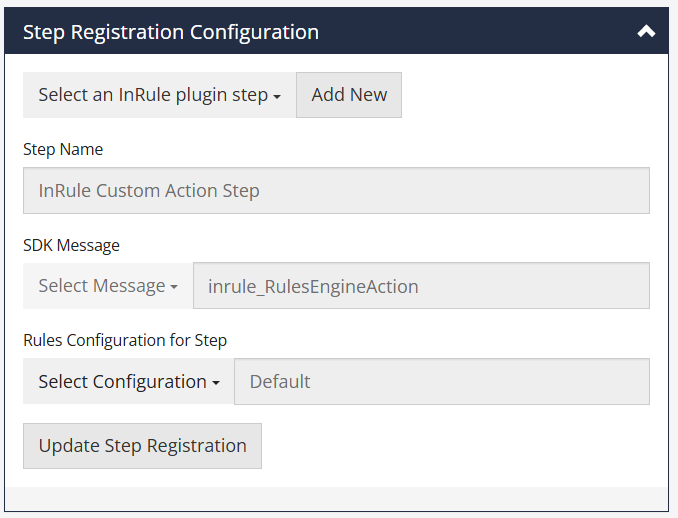
The Rules Configuration page contains 3 sections: Rule Execution Services Configuration, Step Registration Configuration, and Rule Configurations. Each section will be explored in detail throughout this appendix. The following configuration is required to establish connectivity to the rule execution service and mapping of entity events and triggers to Rule Apps and Rule Sets.
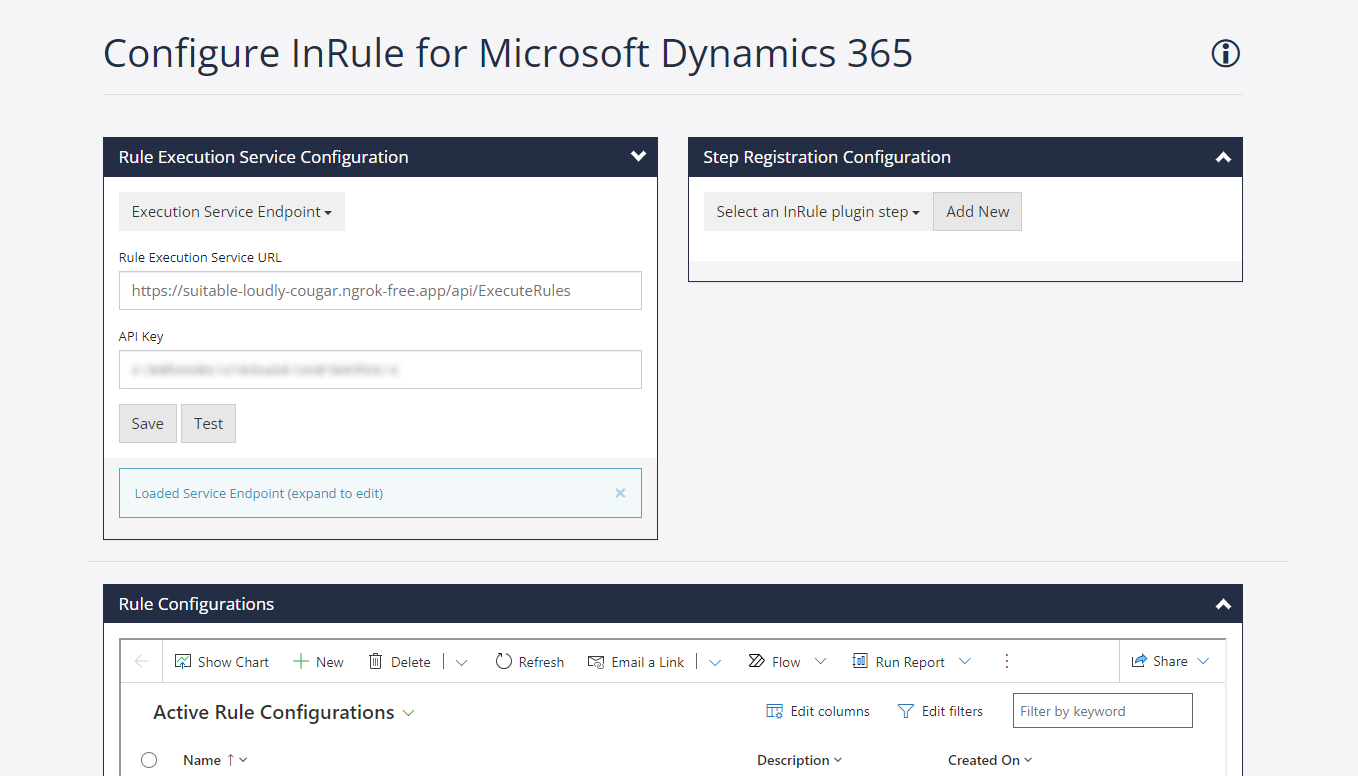
Navigating to Rules Configuration from Dynamics
Within Dynamics 365, click on the settings cog in the top right and go to Advanced Settings. From the settings navigation pane, select Rules Configuration under the InRule group.
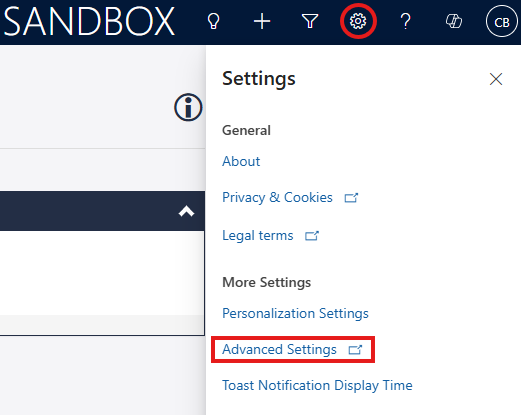

Navigating to Rules Configuration from Power Platform
Within Power Platform Admin Center, go to the Settings for your environment and then click on All legacy settings. From the settings navigation pane, select Rules Configuration under the InRule section.
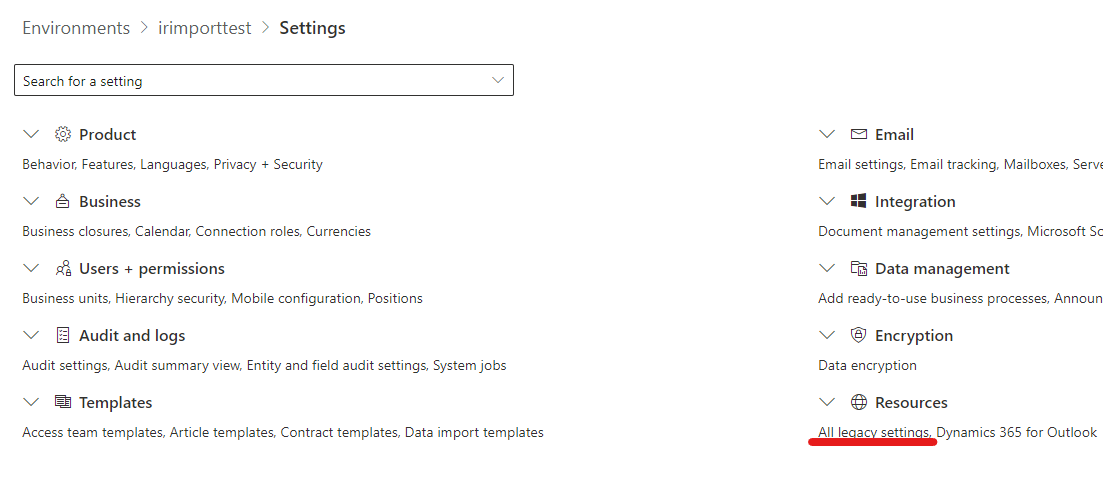
Rule Execution Services Configuration
As of InRule version 5.9.0, the rule execution service is now available via a REST endpoint as compared to the Azure Relay/Webjob integration model used in prior versions. Since both the Dynamics Execution API and the webjob are functionally identical, the transition is relatively seamless, but new authentication options are available and will need to be updated.
REST Endpoint
Configure the URL for the Dynamics Execution Service along with authentication credentials.
| Configuration Form Fields | Additional details on these settings are found in "Rule Execution App Service for Dynamics 365" section. |
|---|---|
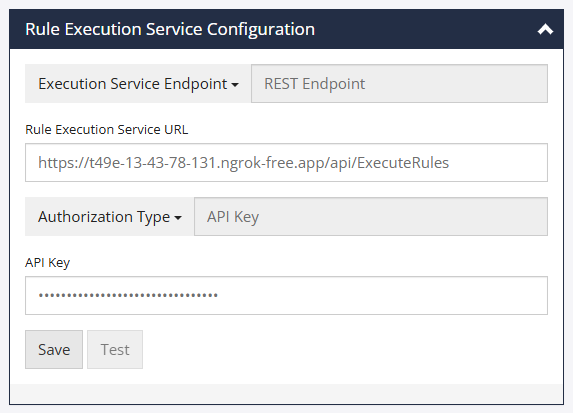
| Rule Execution Service URL | The URL to the Dynamics execution service that was deployed in self-hosted Azure or InRule SaaS. For InRule SaaS, the URL can be retrieved from the portal in Settings (gear icon) – Provisioned Resources. |
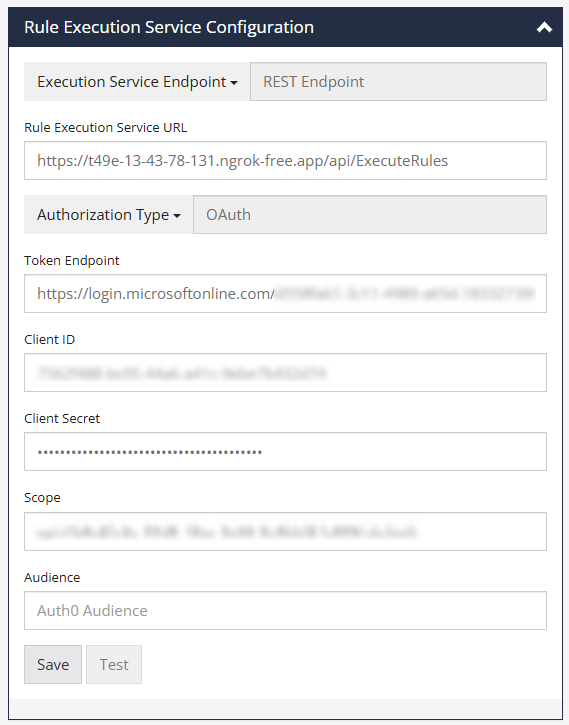
| Authorization Type | This drop-down allows you to choose the form of authorization to the Execution Service. You have the option to choose from API Key or OAuth. For OAuth authentication in InRule SaaS, additional setup from InRule Support may be required. Currently OAuth support is limited to either Microsoft Entra or Auth0. |
| API Key | The API Key configured for the Dynamics execution service. Either the Primary or Secondary API Key is valid. For InRule SaaS, the API Key can be retrieved from Settings (gear icon) – Configuration. |
| OAuth Token Endpoint | Token Endpoint for the Entra or Auth0 Application. E.g., https://login.microsoftonline.com/{yourtenantid}/oauth2/v2.0/token. |
| OAuth Client ID | Client ID for the Entra or Auth0 Application. |
| OAuth Client Secret | Client Secret for the Entra or Auth0 Application. |
| OAuth Scope | (Entra only) Can use the default scope for the Entra Application. |
| OAuth Audience | (Auth0 only) Use the Audience defined for the Auth0 Application. |
The following screenshots show the Rule Execution Service Endpoint Configuration using the REST Endpoint with either API Key or OAuth authentication.
API Key
OAuth
Be sure to click the Save button, and to observe the "Saved Changes" notice:

Once changes have been saved, configuration can be tested by clicking the Test button. This test configuration tests these three things:

- Execution Service Connection. Test sends a request to the execution service that was deployed and configured to make sure that it is setup correctly.
- Execution Service to Dynamics Connection. Test makes a request from the execution service to make sure that it can make a request back to Dynamics with the connection information configured on the App Service.
- Rule Catalog Connection. Test makes a request to the Rule Catalog with the connection information configured on the App Service.
If all the tests succeed, the system has been configured correctly. If any of the tests fail, check the configurations for the subject under test.
Azure Relay
The Azure Relay will still be supported for a period of time to allow for transition to the new REST Execution API. To enable this, select 'Azure Relay' in the Execution Service Endpoint picklist. This configuration requires the Relay Namespace and the Relay Key (SAS Key) to be available for this step.
| Configuration Form Fields | Details on these settings are found in "Rule Execution App Service for Dynamics 365" section. |
|---|---|
| Endpoint Name | For basic configuration, this can be left as is. |
| SAS Key Name | The key output by the ARM template is the 'RootManageSharedAccessKey' key, so this value can be left as the default in most scenarios. |
| SAS Key | This is the key secret value, and is output by the ARM template after completion of the deployment. If you did not get the value during deployment, you can find it using the steps in Locate SAS Key in Azure Portal Note: If you provided the "SasKey" parameter in Step 2 of the Dynamics Solution installation section, this value will already be set. |
| Azure SB Namespace Address | Change the Relay namespace here, as the default value of 'inrule-crmonline' will not work for you. The relay namespace is the same value provided for the relay name in the ARM template parameters file. Using the Relay Namespace and the Relay Path, construct the address as follows: https://<<RelayNamespace>>.servicebus.windows.net/<<SB Relay Path>>Note: If you provided the "SasName" parameter in Step 2 of the Dynamics Solution installation section, this value will already be set. |
| SB Relay Path | Unless you have changed the corresponding setting in rule execution app service, this value can be left as the default, which is 'ruleexecution' |
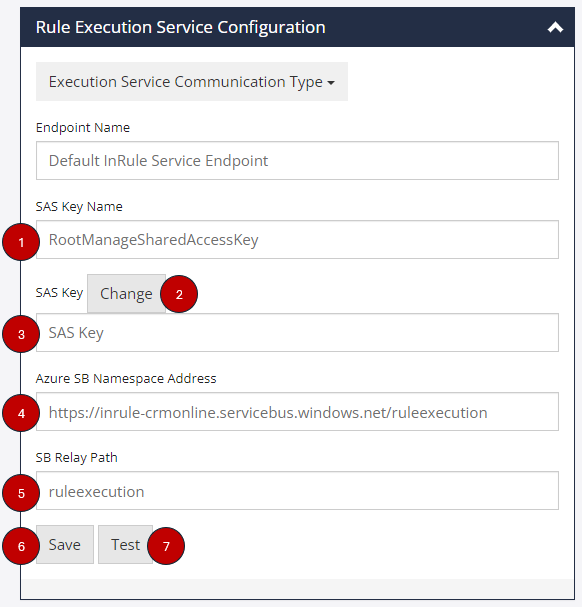
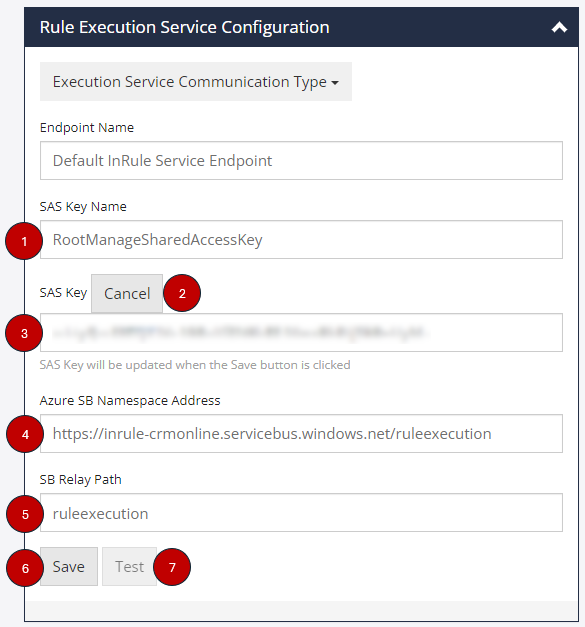
The following screenshots show the Service Endpoint Configuration screen before and after configuration.
- [#1 in screenshot] SAS Key Name
- [#3 in screenshot] SAS Key
- [#4 in screenshot] Azure SB Namespace Address
- [#5 in screenshot] SB Relay Path
Please note that you must click on Change [#2 in screenshot] before the SAS Key can be entered.
If you are using the standard Azure US environment 'AzureCloud', then the provided domain suffix will work fine. However, if you are using an alternate Azure Environment such as US Government or an international environment, be sure to update the suffix to the appropriate value for your region.
Step Registration Configuration
The Step Registration Configuration section enables the association of Rule Configuration records to entity Create/Update events or the inrule_RulesEngineAction custom action. This is used to map specific Rule Apps, Rule Sets, parameters, and options to an entity event or the Run Rules button.
The InRule Solution contains a default Step Registration after install that points to a Default Rule Configuration. This can be used without modification for basic testing of the Run Rules button. For more advanced execution scenarios, additional Steps and Rule Configurations will need to be added, which are described in the following section.