Executing Dynamics 365 Rules from Form Events
While the Run Rules button provides an easy way to run rules on demand, you can also run rules automatically on form events, such as 'OnSave'. To help with this, the invokeCustomAction.js web resource provides a helper function called 'executeRulesOnEvent' that you can easily register to an event.
When this function is registered to the 'OnSave' event of a form, it will trigger the rules configured for the entity or event (see specific steps below). Any validation errors returned by the rules will automatically cancel the save operation and display the messages in the notification pane. Alternatively, if you need to use validations to prevent saving for updates made from the Dataverse API, you'll need to configure rules to run on the 'Update' or 'Create' event for an entity as described in Dataverse Events.
If you want to use the dirty field values currently on the form, and not the values already saved to Dataverse when running rules, make sure you set Use Dirty Entity Image to true when setting the InRule Configuration for this entity. You can do this by following the steps in Updating InRule Rules Configuration Records and Associating an InRule Configuration record to an Entity.
-
Registering a function to a form event requires customizing the entity form. If you want to make this change in a solution navigate to that solution first. Otherwise, navigate to Settings -> Customization -> Customize the System
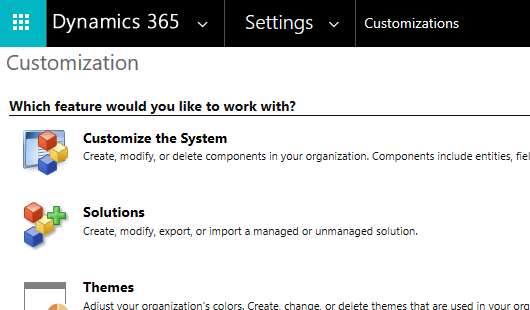
-
Navigate to the entity and form you'd like to customize and select it
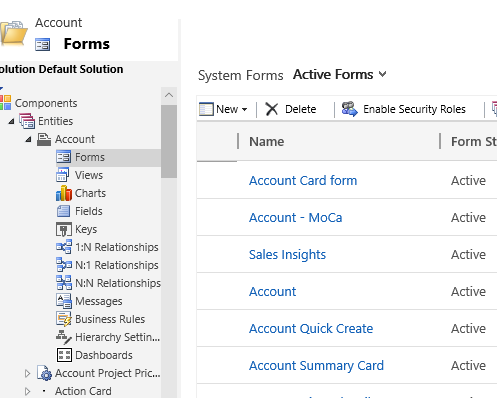
-
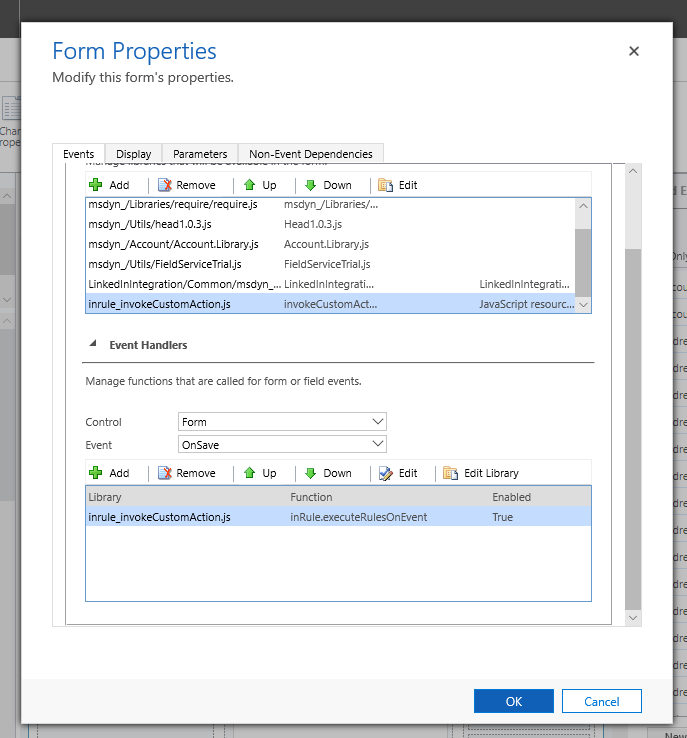
Once the form is open, select Form Properties in the ribbon bar, click Add under Form Libraries, find inrule_invokeCustomAction.js and add it
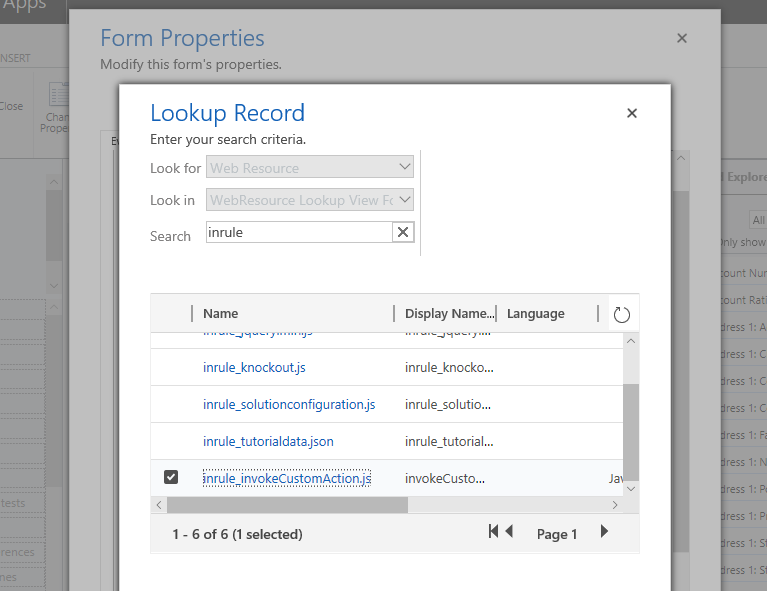
-
Select the desired Control and Event under Form Handlers and click Add. In the window that pops up, select 'inrule_invokeCustomAction.js' for the Library, and enter 'inRule.executeRulesOnEvent' for the Function. Under the Parameters section, ensure the Pass execution context as first parameter is checked. If you want to override the default rule set and rule app configured for the entity, the rule app can be passed in as the first parameter, and the rule set or decision as the second. Both must be passed for this to work.
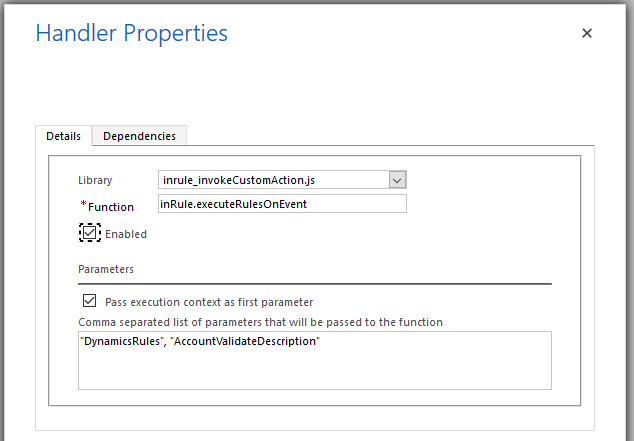
-
Click Ok, Ok and then save and publish the form