Dataverse Connectivity and Authorization
There are two Dataverse authorization contexts used by the InRule integration framework for different functional purposes:
- Plugin authorization context
- handles loading of configuration and saving of changes from rules
- Execution service authorization context
- used to read additional entities from Dataverse required for executing rules
When executing rules via Dataverse, the InRule plugin handles the initial event from the custom action or entity before making a request to the execution service. The execution service then loads additional entities required for running rules, and passes entity changes back to be persisted by the plugin.
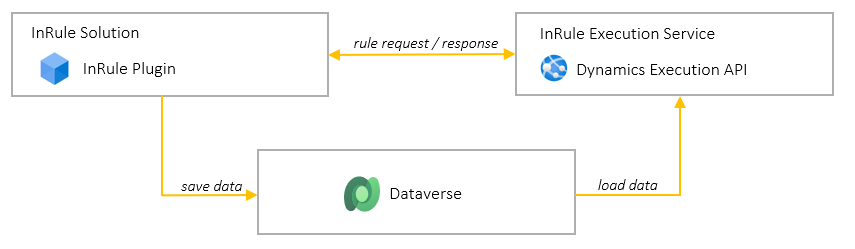
The above dataflow diagram is an excerpt from the Solution Architecture Overview. Each component needs to be configured with the appropriate accounts and permissions to successfully execute rules. This appendix describes the requirements and setup for both the plugin and execution service authorization contexts used by these components.
Plugin Authorization Context
The InRule plugin contained in the Dataverse solution can be invoked via either the included custom action or by registering additional Dataverse event handlers. The plugin loads initial config information from the step registration associated with the event, and then uses this information to load additional configuration from the custom InRule config entities included with the solution. It then uses this information to make a request out to the rule execution service. When it receives a response from the execution service it saves any entity changes sent over as the result of rule execution.
The plugin is configured by default to run in the calling user's context, but it can also be manually configured to run in a specific user context via the plugin registration tool. Whichever user context is configured, the user context will need to have roles assigned with the required permissions to function properly.
Roles and Permissions for the Plugin Context
The permissions required are divided into two parts, the baseline permissions required to access the plugin, config, and connections, and the permissions required to persist any entity changes.
The required baseline permissions are included in the 'InRule Rule Executor' role that is a part of the solution. Assigning a user this role will give them permissions required for the plugin to execute and the ability to use the Run Rules button on entity forms.
The user context will also need write permissions for any entity changes that need to be saved as part of rule execution. The calling user will often already have the roles required to write to entities they already work with but may need additional roles or permissions added for new entities.
Execution Service Authorization Context
The rule execution service receives the incoming request from the plugin and uses the rule application schema to load any additional related entities before applying rules. Because the execution service is out of process to Dataverse, it requires a separate service account to connect back and log in to Dataverse.
There are two supported Authentication Types to establish this connection:
- S2S
- Application User with an InRule-managed client ID and secret
- NOTE: InRule-managed for Saas, self-managed for self-hosted
- OAuth
- Client-supplied username and password
- NOTE: MFA must be disabled for the OAuth service account
Roles and Permissions for the Execution Service Context
Unlike the plugin context, the rule execution service does not need access to any baseline config or InRule entities, it only needs read access to the specific entities loaded during rule execution. A Dataverse security role will need to be assigned to the service account used to connect to Dataverse, whether that's the Application User configured with S2S or the named user configured with OAuth.
The 'InRule Integration Administrator' role is included with the solution for convenience and is automatically created during deployment, but existing or new custom roles can be used as well.
As of InRule 5.9.0, the automated setting of the privileges for this role had to be removed to avoid conflicts with the Dynamics package installation. Privileges for this role will need to be set manually for all entities accessed for rule execution. The list of entities required can be determined from the rule application(s) schema.
While the plugin context and rule execution service will both need access to similar entities and a single role could be used for both, the permissions can be divided into separate read and write roles for greater security.
Consenting to the InRule SaaS Entra ID Application
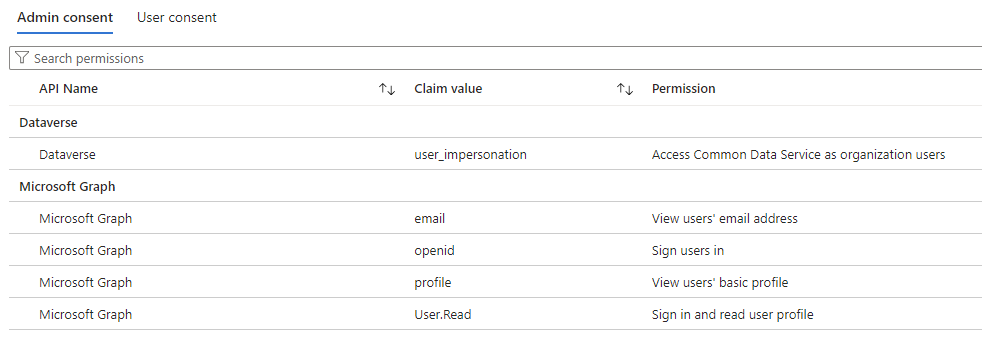
When using InRule SaaS, the InRule Entra ID application (FKA Azure AD Application) that governs the integration will need to be consented to before the execution service can connect to the client Dataverse instance. This consent provides the minimal permissions necessary for the execution service to be able to log in and connect to the Dataverse API as the configured user. The roles described in the previous section will still need to be assigned to the service account before any data can be accessed.
Following is the list of permissions granted through the consent process:
Configuring the Dataverse Connection in SaaS
InRule SaaS offers customers the most streamlined deployment process, eliminating the need to install and manage self-hosted Azure App Services, as InRule will manage the deployment of the Rule Execution Service for you. SaaS customers are also able to use their SaaS portal to access the information needed for configuring the InRule Solution for Dataverse and provide Service Account credentials for the SaaS-hosted Rule Execution Service to connect to a Dataverse environment.
Granting Consent
To allow the Rule Execution Service to connect with the Dataverse environment, an administrator for the Dataverse environment will need to grant consent. For those wishing to use an S2S connection, an application user will then need to be created. This can all be done through the InRule SaaS page provided in the InRule Solution for Dynamics 365.
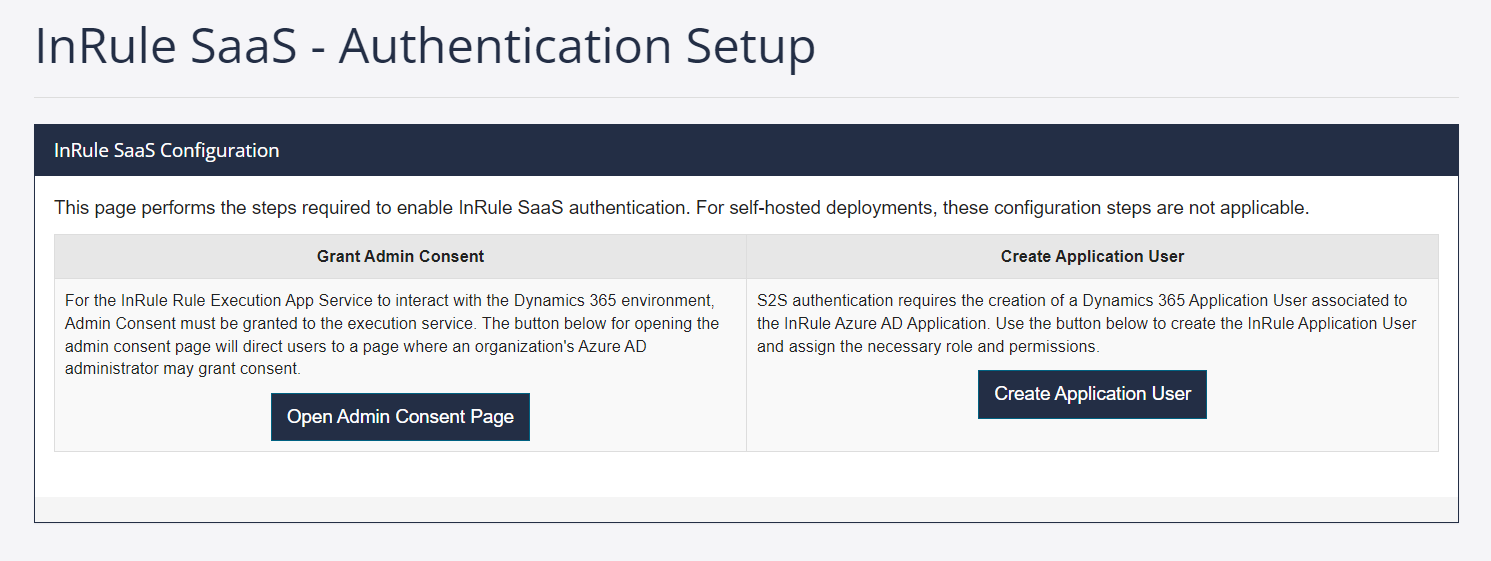
Selecting Open Admin Consent Page will redirect to a Microsoft-managed page that will show the permissions being requested. The page will look like this:
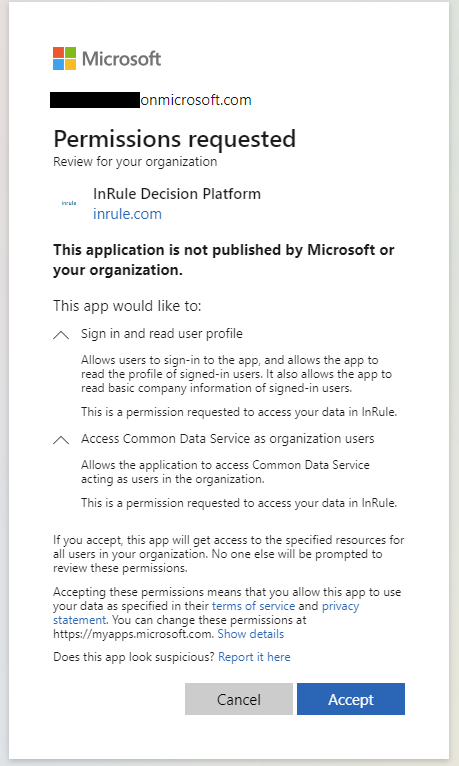
Clicking Accept will grant the requested permissions and then redirect to an InRule success page.
Creating an Application User
Once consent has been granted to the InRule Decision Platform application, the application will be available in the client tenant and an application user based on it can be created in the Dynamics environment. The application user can be created either by selecting the Create Application User button on the SaaS Configuration page or by using the Power Platform Admin Center.
Selecting the Create Application User button will automatically create an application user in the current Dynamics environment and then assign the included 'InRule Integration Administrator' role. Once the application user has been created it can be managed like any other application user and roles can be added or removed from it.
Alternatively, admins can use the Power Platform Admin Center to manually create the application user and assign roles to it. Follow the directions here searching for 'InRule Decision Platform' or '5c6f5d76-9f2c-4e9c-9bdb-58af9d31f09c' when adding the app: https://learn.microsoft.com/en-us/power-platform/admin/manage-application-users#create-an-application-user
Dataverse Runtime Settings in the InRule SaaS Portal
SaaS Customers can find the configuration needed for connecting to their Dataverse instance through the Configuration page of their SaaS portal.
Please note that only the Dynamics 365 Runtime Settings are currently used by the Dynamics Execution Service. In a future release, settings from the Execution Server Settings and General Settings section will also contribute to the Dynamics Execution Service. In the interim, if you need any of those settings changed, please reach out to InRule Support.
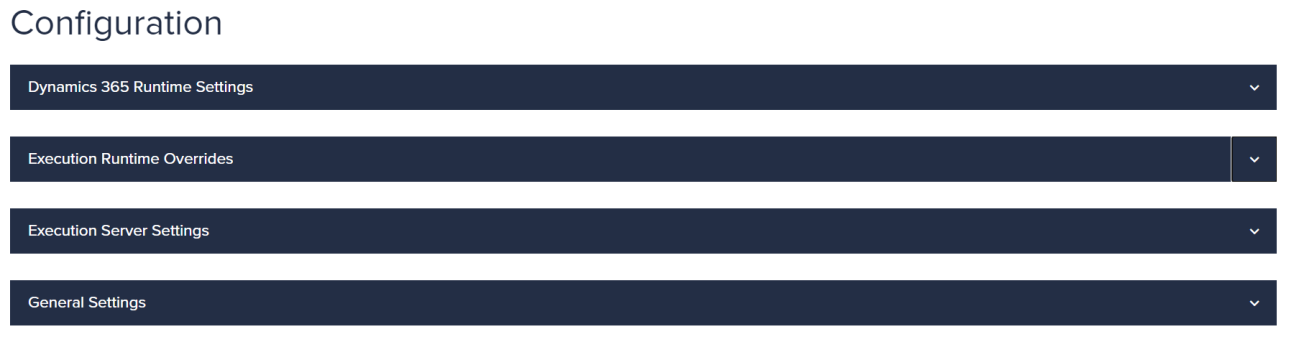
Providing Connection Information
Clicking the drop-down arrow for the Dynamics 365 Runtime Settings section will allow users to provide connection information that will allow the SaaS-hosted Rule Execution Service to interact with their Dataverse environment. You have two options for authentication type, S2S and OAuth.
- If you choose S2S, InRule will manage the credentials for accessing Dynamics, and you will just need to create the associated Application User in your Dynamics instance.
- If you want to provide and manage your own credentials, you can choose OAuth, which will authenticate with a named user account.
When changes are made in the SaaS portal it will take a few minutes for the SaaS-hosted Rule Execution Service to refresh and use the updated information.
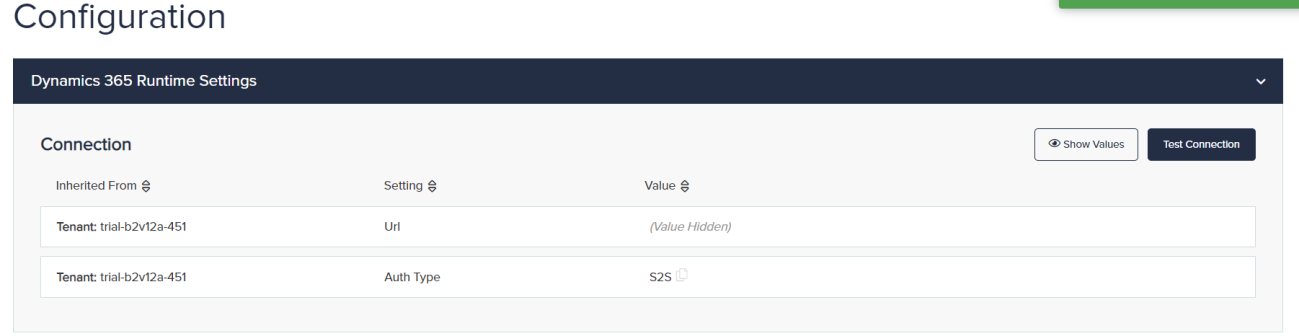
1: Using an S2S Connection
For an S2S connection, only the Organization URL will need to be configured in the portal.
2: Using an OAuth Connection
For an OAuth connection, the Organization URL, as well as Service Account username and password, will need to be provided.
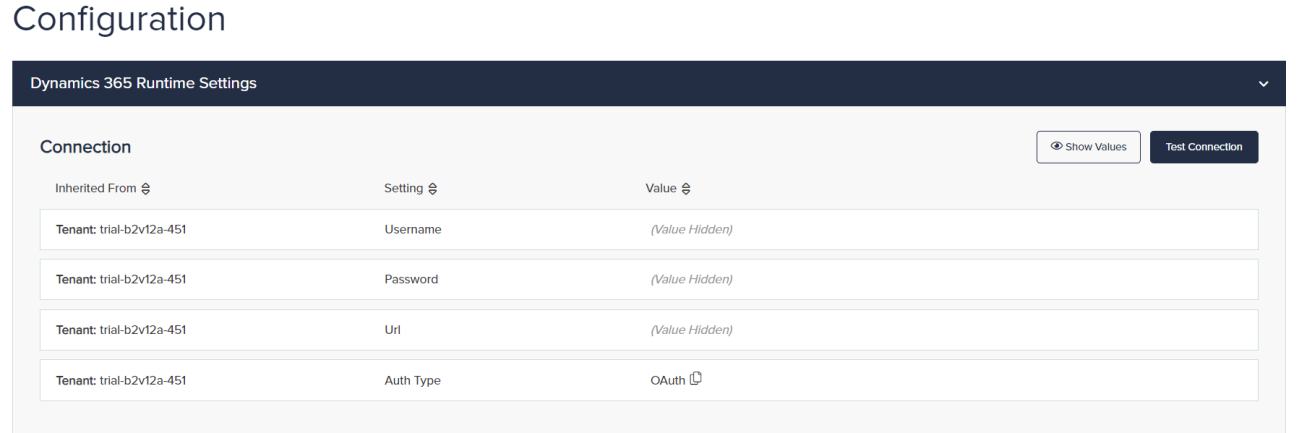
MFA must be disabled for the OAuth service account. A service account with MFA enabled will not allow the Rule Execution App Service to authenticate with Dynamics 365.
Configuring the Dataverse Connection for Self-Hosted Installs
Self-hosted installs of InRule will need to build a Dataverse connection string to pass in during deployment of the required Azure resources. This connection string will be used in the Execution Service Authorization Context to connect back to Dataverse. Self-hosted installs have greater flexibility when choosing authentication methods, but the two documented here are OAuth and S2S as discussed above. The primary difference with self-hosted as compared to SaaS installs is that clients will need to create their own Entra ID application instead of using the InRule-managed one.
Information on connection string formatting can be found here: https://docs.microsoft.com/en-us/powerapps/developer/common-data-service/xrm-tooling/use-connection-strings-xrm-tooling-connect
For OAuth authentication, you can use the default app provided by Microsoft instead of creating and configuring your own application. You can find more about this, as well as the transition from WS-Trust (Office 365) to OAuth authentication here: https://docs.microsoft.com/en-us/powerapps/developer/data-platform/authenticate-office365-deprecation
Creating the Entra ID Application
This step is only necessary if you are self-hosting and intend to leverage a server-to-server (S2S) connection between the rule execution service and your Dynamics environment. You can also follow the directions here if you are using OAuth authentication, and do not want to use the Microsoft default app and want to create your own instead.
Registering an Entra ID application is fully automated in the Register-AzureApp.ps1 PowerShell script included in the RuleExecutionAzureService folder within the InRule for Microsoft Dynamics 365 Integration Framework.zip file downloaded in Optional Resource Files.
This script requires the Azure AD PowerShell module to be installed on the computer before running the script. If this module is not yet installed, you can install it by opening an admin PowerShell window and executing Install-Module AzureAD.
By default, the application is registered in the primary directory the user account belongs to. If the app needs to be registered in a different Azure Active Directory tenant, you can pass in the tenant ID with the optional "TenantId" parameter.
PS C:\RuleExecutionAzureService> .\Register-AzureApp.ps1 -Username admin -Password password `
>>  -TenantId 29d4c658-27b9-4a52-829d-f2dfe1cc7dfg
Run the script and log in with an admin account with sufficient permissions to create an Azure AD app when prompted. Observe that no errors occur while the application registration script is running.
When finished, the script will output three values: The application name, application ID, and the secret key. Save these 3 values, particularly the secret key, as there will be no way to retrieve this later. The application ID will be needed when deploying the InRuleSolution for Dynamics 365, and both the Application ID and Key will be needed for the connection string when deploying the Rule Execution App Service.
