Rule authoring
We currently support the following rule types:
All rules are written as language rules and most templates available on Desktop are now available in Web.
Syntax rules are not currently available. If a syntax rule is present in an existing application, it converts to a language rule.
Writing rules
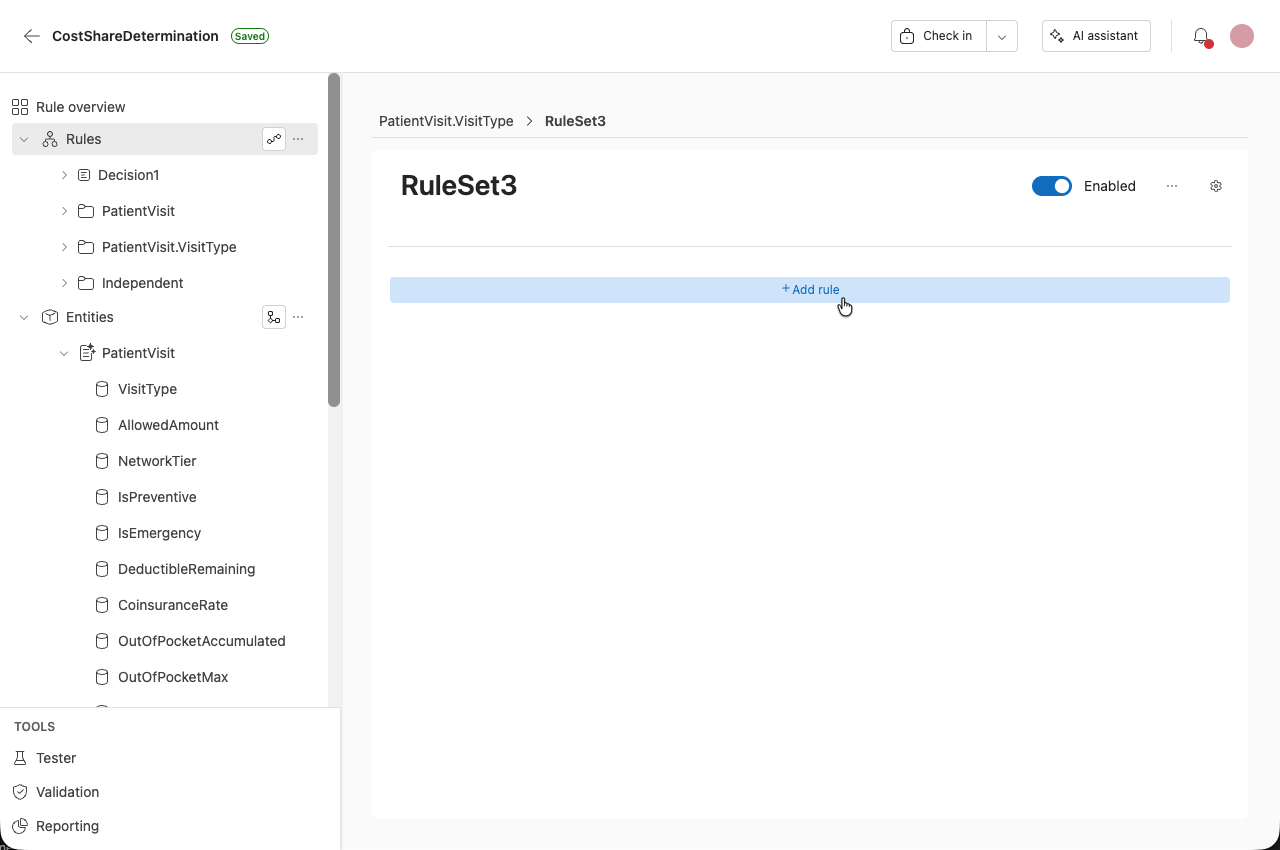
Once you have created a Rule Set, you can begin authoring a rule.
Click Add rule to open the Rule Authoring Menu.
The menu is context aware and only shows options that are valid for the current rule context.
Once a selection is made, the appropriate template is populated in the rule editor.
The editable parts of the template are highlighted and can be modified by clicking on them.
Character limits in irAuthor Web: Names: 255 characters Short text fields: 512 characters Description fields: 2000 characters
Condition extender
As you write rules, you can use the condition extender to add to your statement.
Click on the blue dot to extend your condition.
If you have multiple conditions in your expression, you may see three condition extenders as shown below.
- The first extender (red in the image below) applies only to the final property of the current condition, “3”.
- The second extender (yellow in the image below) applies to the most recently completed subexpression, “minus 3”.
- The third extender (green in the image below) applies to the entire condition “If CopayAmount is equal to 30 minus 3”.
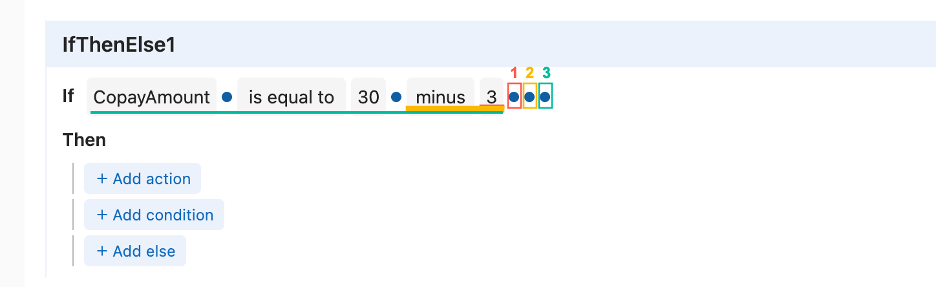
Click on the condition extender to see a dropdown of available conditions.
Calling existing data
You can use the Rule Editor to call existing data from your rule application.
Fields from the associated entity are available within the Rule Authoring Menu.
Editing or deleting conditions
Editing
Click on a property with a grey background to reopen the Rule Authoring Menu and make a new selection.
Deleting
- Right-click on a property to delete it.
- Right-click on the first property in a condition to delete the entire condition.