Decision tables
Add a decision table
You can add a decision table from the Rule authoring menu.
Decision table properties
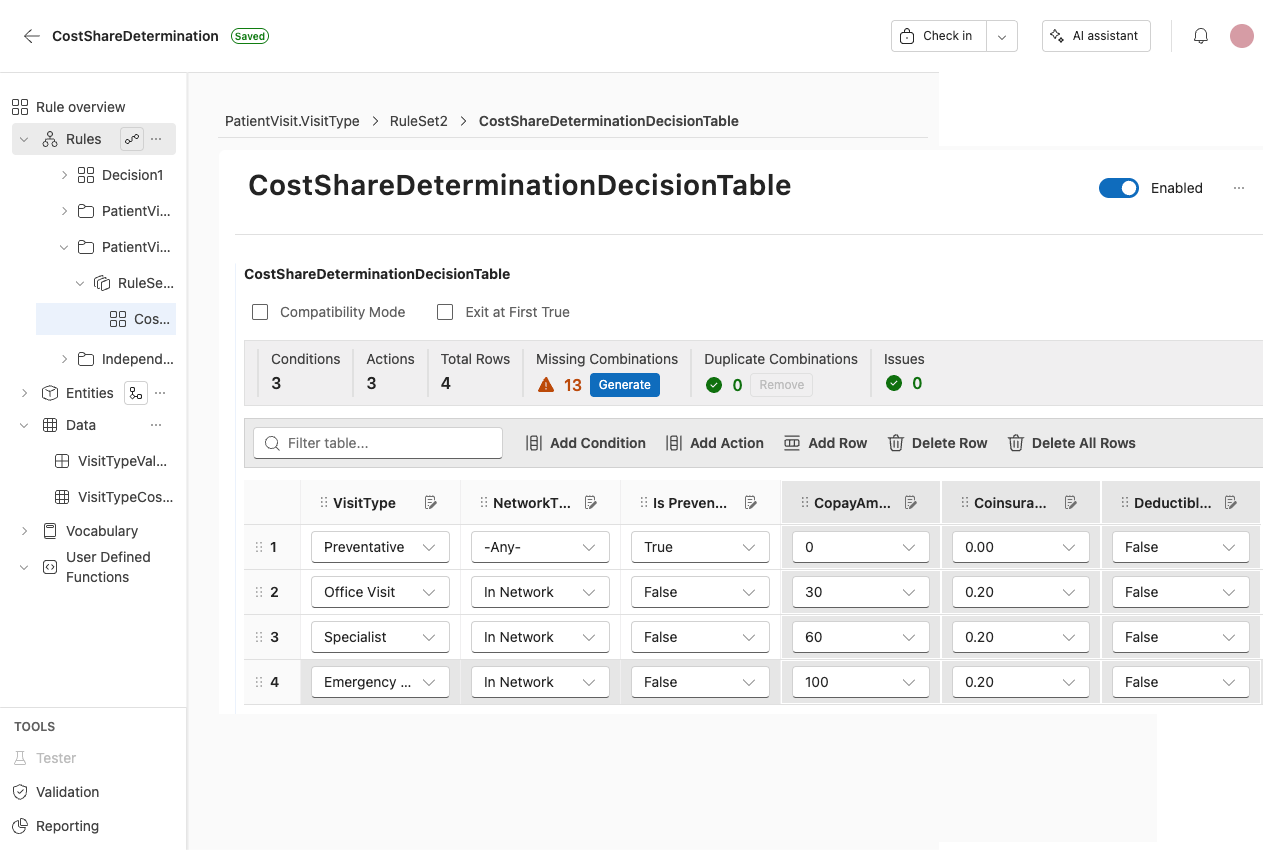
1. Name
The title of the decision table is saved here.
2. Enabled
You can enable or disable the selected decision table. Disabled decision tables will not run when the rule set is executed.
3. Compatibility mode
When checked, the identity of conditions that evaluate and actions that execute will include the row identifier (e.g. Row3). Turning this feature on will result in slower compilation and execution performance.
If the Run Mode of the parent rule set is Auto-Optimized, Compatibility mode is the only option and must be used.
4. Exit at first true
When checked, the decision table will stop evaluating rows after a row matches its conditions and executes its actions. If unchecked, execution continues to evaluate the remaining rows in the table and executes actions for any row whose conditions match.
5. Analysis toolbar
Here you can view the total number of Conditions, Actions, and Total Rows in the table as well as the notifications and controls for Missing Combinations, Duplicate Combinations, and Issues.
6. Filter table
The Filter checks the input within all columns and rows. If there is a match, the complete row will show for the match. The filter allows for large data sets to be easily searched.
7. Add Condition
Adds a new Condition column.
8. Add Action
Adds a new Action column.
9. Add Row
Adds a new row to the table.
10. Delete Row
Deletes the selected row.
11. Delete All Rows
Deletes all rows in the table.
Moving rows and columns
It is possible to move rows and columns by dragging and dropping them. The Conditions and Actions columns can be rearranged with their respective sections, but they cannot be mixed.
It is not currently possible to insert a row at a specific position. You can only add a new row and drag it to its appropriate position.
Editing conditions
Click on the clipboard icon next to a column name.
This opens the Edit Condition Column window.
Only local lists are editable in this view.
Column selector
Use the < Previous and Next > buttons to navigate between columns.
Condition display name
Specifies the name of the Condition Set that appears in the decision table column header.
Include –Any– condition
Check or uncheck the Include –Any– Condition to add or remove the Any Condition.
Linked field
Select the Linked Field here.
Value list source
Shows which value list is being used and allows you to reselect.
Use values from the field’s value list
Selected by default. Picks the value from a field associated with a value list.
Use values from an existing value list
Allows selection of any inline value list in the rule application.
Use local list
Allows you to create a custom value list to be used for the decision table. If no value list is available, the editor is blank. If a value list is selected, that value list appears in editable form. Edits made here do not impact the original value list, but create a new version associated with the decision table.
List values
The List Values section shows the Display names and Expressions of the selected value list. At the bottom of the list, there are options for refreshing the list and adding a new value if using a local list.
Display name
Edit the name shown in the table.
Condition type
Select how the column's comparison is defined:
- Field – Compare the linked field to a value using an operator. See Comparison type below.
- Expression – Replace the field comparison with a syntax expression, using the same expression editor available elsewhere in the rule application. Use this when a condition needs logic a field comparison cannot express, such as comparing two fields to each other or applying a calculation before the comparison.
Switching a column from Field to Expression converts the existing comparison into an equivalent expression automatically. Switching back to Field restores the original operator and value, but only if the expression is still in that same field-comparison shape.
This differs from the desktop product, where switching a condition column back to Field always resets it to an empty Equals comparison instead of restoring the original value.
Comparison type
Available when Condition type is set to Field. Select the operator used to evaluate the condition (for example, Equals or Greater Than) and provide the comparison value.
Edit actions
Only editing of Actions of the type Set Value is currently possible.
Only local lists are editable in this view.
Action display name
Specifies the name of the Action that appears in the decision table column header.
Linked field
Select the Linked Field here.
Value list
Shows which value list is being used and allows you to reselect.
List values
The List Values section shows the Display names and Expressions of the selected value list. At the bottom of the list, there are options for refreshing the list and adding a new value.
Missing combinations
A missing combination is an input scenario that does not match any rule row in the decision table. In these cases, the table does not define what should happen for that set of conditions.
irAuthor analyzes the decision table and identifies:
- Condition values that lead to uncovered scenarios
- Any overlaps or gaps in the logic
- Rows you may want to add so all relevant scenarios are addressed
Generate missing combinations and handling duplicate rows
To generate missing combinations
- Click on the Generate button.
- You will be asked to confirm. Select Generate again. The rows will then be generated.
- If the rows in the decision table are greater than 2000, you will see a Compute option.
- From the Compute Missing Combinations Count window, select if you want to proceed with computing additional Missing Combinations.
- If duplicate combinations exist in the decision table, you will see a notification.
- Click on the Remove button.
- From the Duplicate Combinations window, select the duplicates you want to remove, and select Remove Duplicates.
Decision table issues
Here you can view any issues in the table that do not pass the validation check.
Common issues
- Columns are not named
- Columns do not have unique names
- Different fields need to be set