Welcome to irAuthor Web
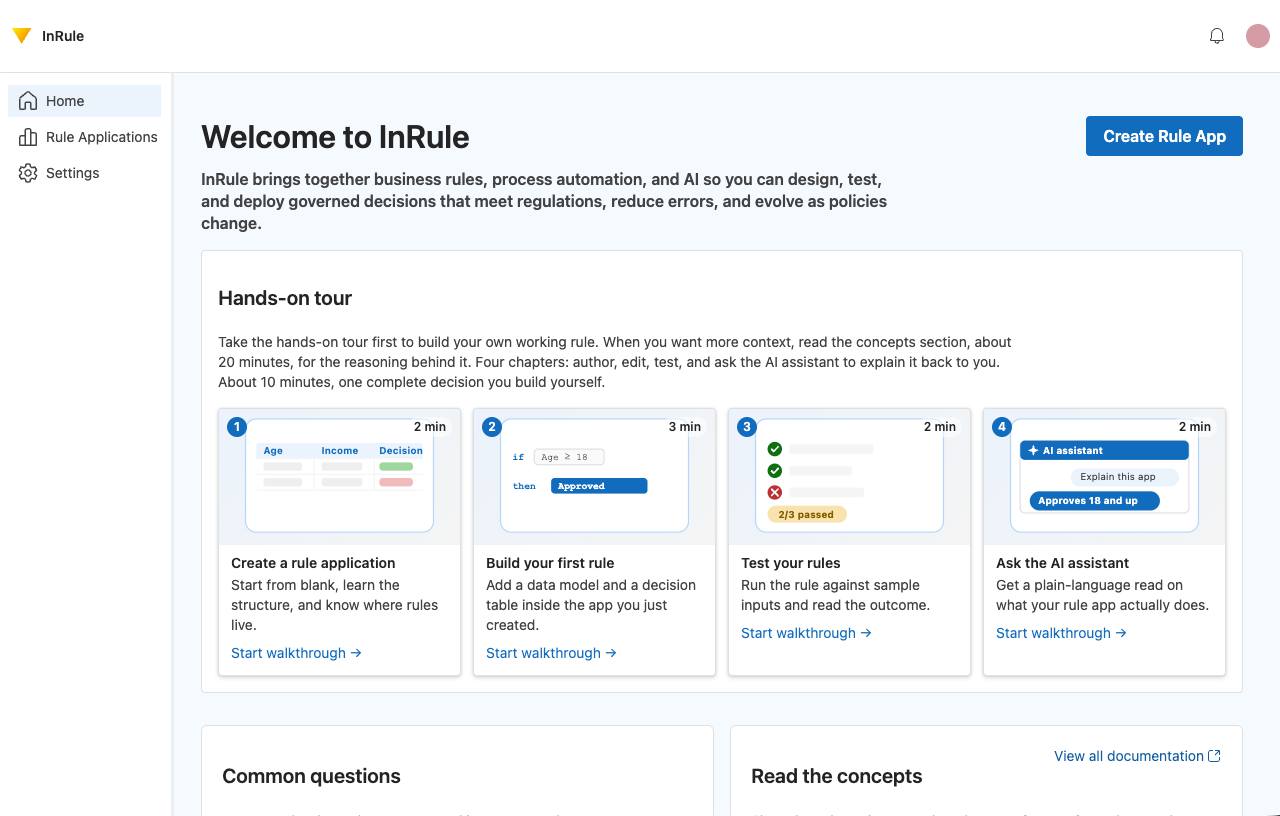
From the irAuthor Web home page you can access your rule applications, settings, and onboarding resources. irAuthor Web onboarding offers a guided tour, answers to common questions, and links into the documentation. The home page's Share the onboarding kit card opens the irAuthor Web onboarding kit in a new tab, a shareable resource covering the platform basics for onboarding new rule authors or as context for an AI assistant.
Rule application list
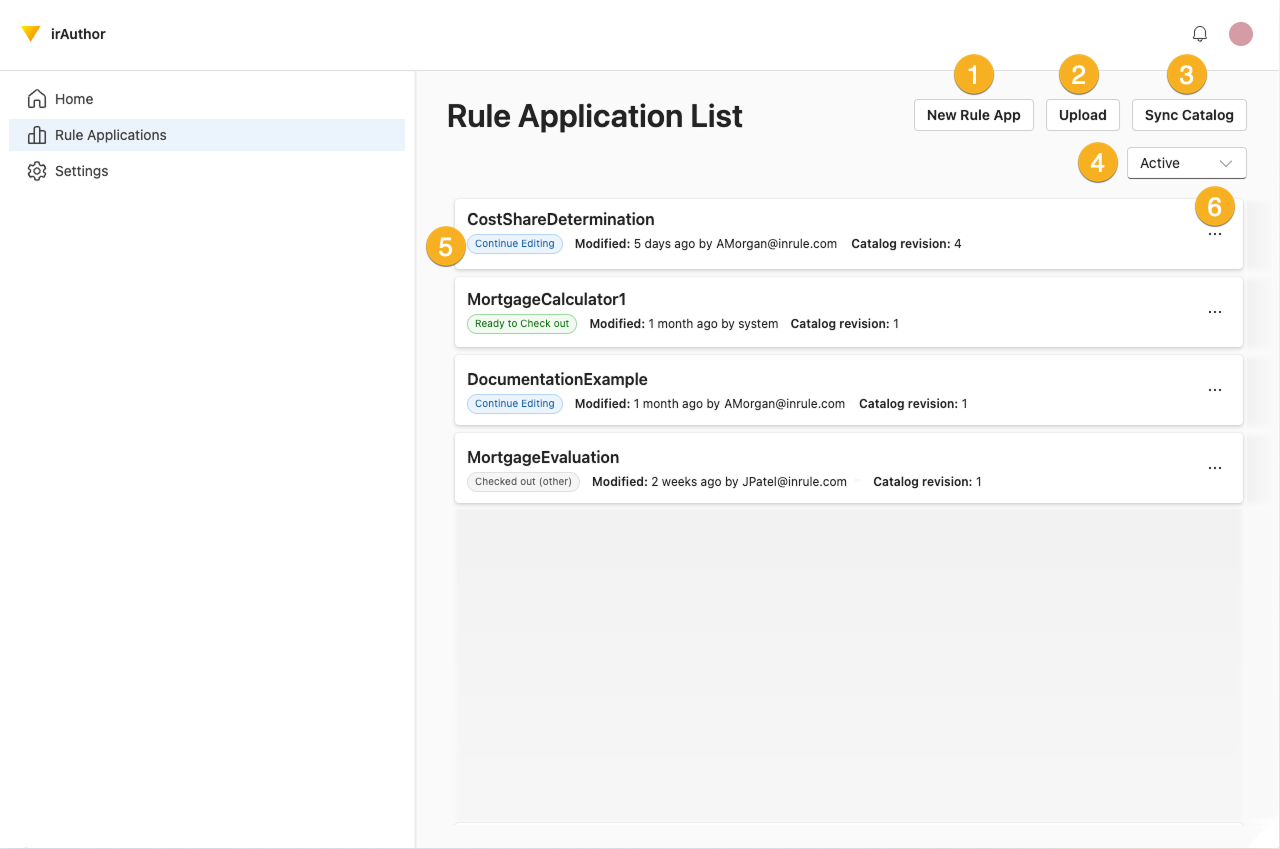
The Rule Application list contains all the rule applications in the associated catalog.
List controls
1. New Rule app
Click here to create a new Rule Application.
2. Upload
This allows you to upload a Rule Application in the file format .ruleapp or .ruleappx.
3. Sync catalog
Use the Sync Catalog option to sync the rules in your catalog to your irAuthor Web. You only need to use this feature if you have added a new Rule Application to the catalog in another location and it is not yet appearing in the list.
4. Active/Inactive filter
Use the filter to choose what types of rule applications are shown.
The options are:
- Active
- Inactive
- All status
5. Status
Displays the current status of the rule application.
-
Ready to check out
The rule application is available for check out. To edit the rule application, navigate to the rule application page by clicking on the rule application name and then clicking on the Check Out button. -
Continue editing
The rule application is currently checked out and can be edited by a logged in user. -
Checked out (other)
The rule application cannot be checked out right now because another user has it checked out.
6. Rule Application Menu
Download
Downloads the rule application in its current state. If it is being edited, it will download any edits made since its last check in.
Duplicate
Creates a copy of the rule application.
Download checked in
Downloads the version of the rule application that was last checked in, with none of the current edits applied. If this option is greyed out, there is no checked in version to download.
Deactivate
Marks the rule application inactive (a soft delete). Deactivated rule applications can be reactivated with Activate. A rule application that is checked out cannot be deactivated or activated. Requires the RuleApp Administrator role.
Delete
Removes all catalog revisions and the authoring record. This cannot be undone. Requires the RuleApp Administrator role.
Delete only from irAuthor Web
Removes the local authoring copy but leaves the rule application in the catalog, so you can re-import it later. Requires the RuleApp Administrator role and the developer role.
Navigation panel
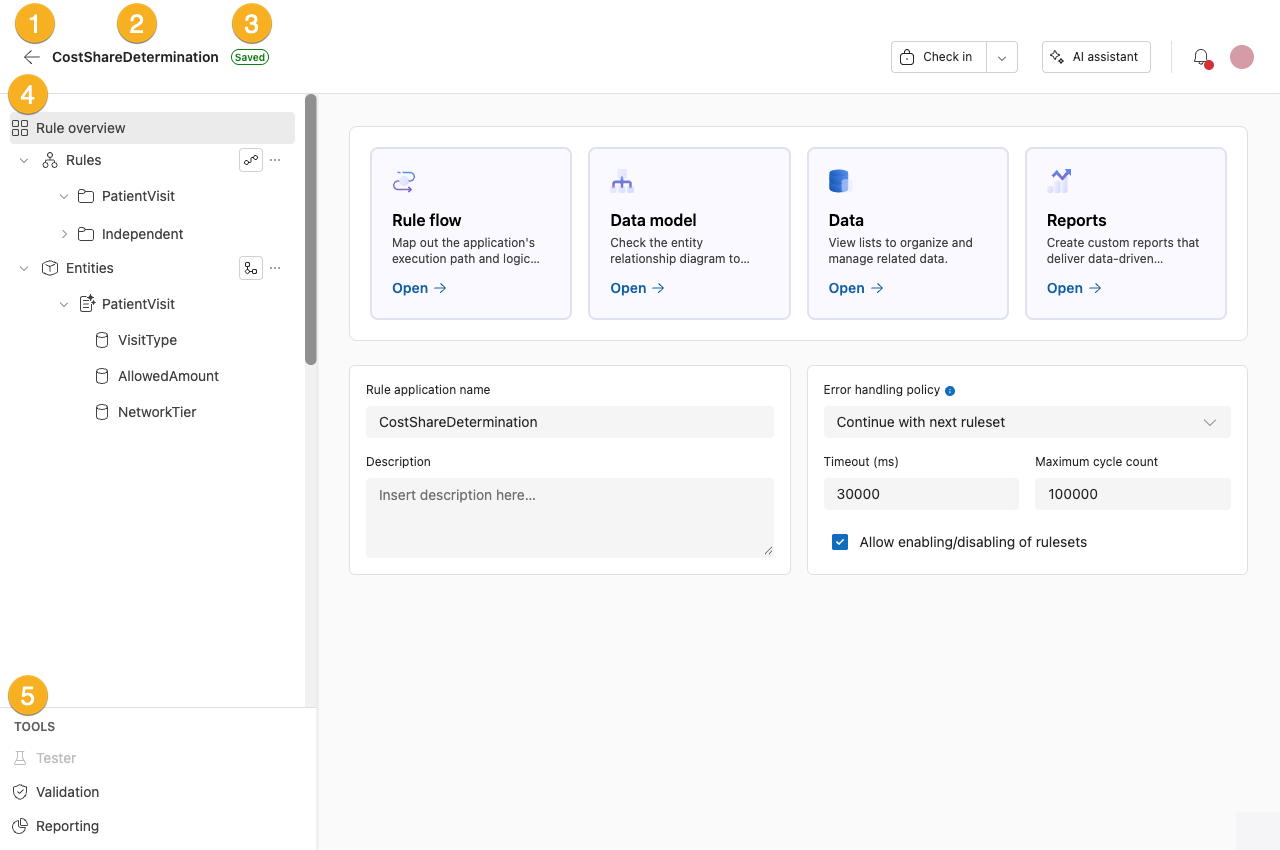
The navigation panel is visible on the left side of the page when a rule application is selected. This panel is resizable.
Navigation elements
1. Back arrow
Clicking on the back arrow will bring you back to the list of Rule applications.
2. Rule application name
The name of the rule application you are viewing or editing is displayed here.
3. Saved status icon
- Green: Changes are saved
- Yellow: Changes are saving
- Red: Lost connection, your changes may not be saved
4. Rule application navigation
This menu allows you to move through the different components of your rule application.
The navigation opens fully collapsed each time you open a rule application, showing only the top-level items.
5. Tools
In the Tools section, you can access the Tester, Validation, and Reporting. The tester is only available when a rule set is selected.
Component navigation
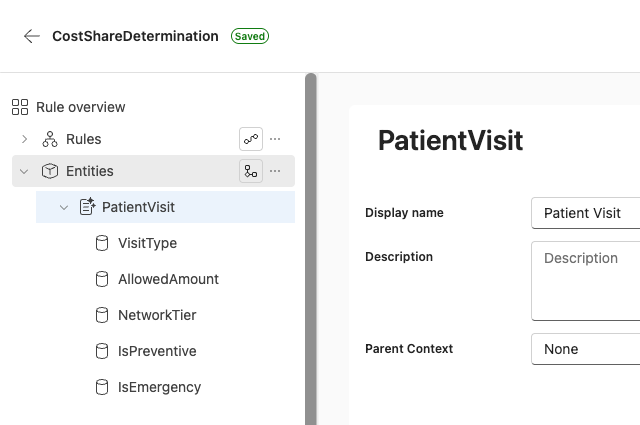
Each page has a corresponding navigation tree for its components. You can read more about the specific navigation for each page in the documentation for that component.
Reorder components
You can drag and drop to reorder the contents of the components in the tree navigation.