Rule applications
Rule applications are the primary containers for entities, rules, decisions, supporting data, and vocabulary in irAuthor Web. From the Rule Application List, you can create, manage, upload, download, and configure rule applications.
Create a new rule application
To create a new rule application:
- From the Rule Application List, select New Rule App.
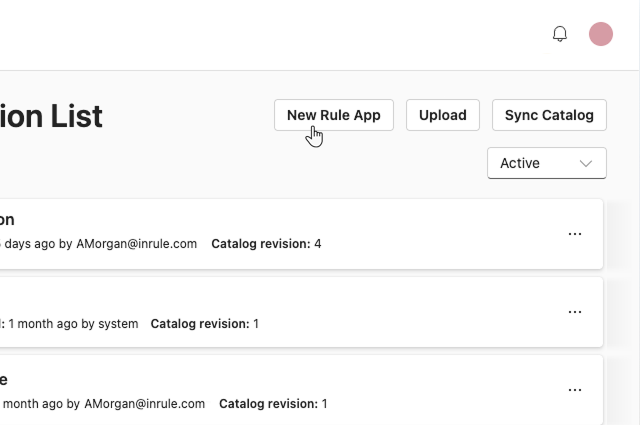
- Rename the rule application by clicking on the name in the content panel.
- Configure your rule application settings.
For details on available settings, see the Rule application overview section below.
Duplicate an existing application
It is possible to duplicate any rule application regardless of its status.
To duplicate a rule application:
- Click on the Rule Application menu.
- Select Duplicate.
A copy of the rule application is created and added to the list.
Rule application actions
Download
Downloads the version of the rule application with the current edits applied. If the rule application is being edited, the download includes any changes made since the last check in.
Download checked in
Downloads the version of the rule application that was last checked in, with none of the current edits applied.
If this option is greyed out, there is only one available version to check out.
Upload a rule application
Upload a locally saved copy of a rule application to the catalog.
To upload a rule application:
- From the Rule Application List, select Upload.
- Select a rule application file in the
.ruleappor.ruleappxformat.
- Select Open.
Upload an existing rule application
If you upload a .ruleappx file with the same name as an existing rule application, you will see an overwrite dialog.
The available options are:
- Create new This treats the file as a new rule application and uploads it with a unique name, such as a number appended to the existing name.
- Overwrite existing The uploaded rule application overwrites the existing one. The rule application remains checked out and you can add comments and set a label. If internal identifiers have changed unexpectedly, for example due to updates from another source, a warning appears to prevent overwrite.
- Ignore or cancel all overwrites Stops the upload and no changes are made.
Rule application overview
From Rule overview you can read and edit the Rule Application’s description and view and edit execution settings.
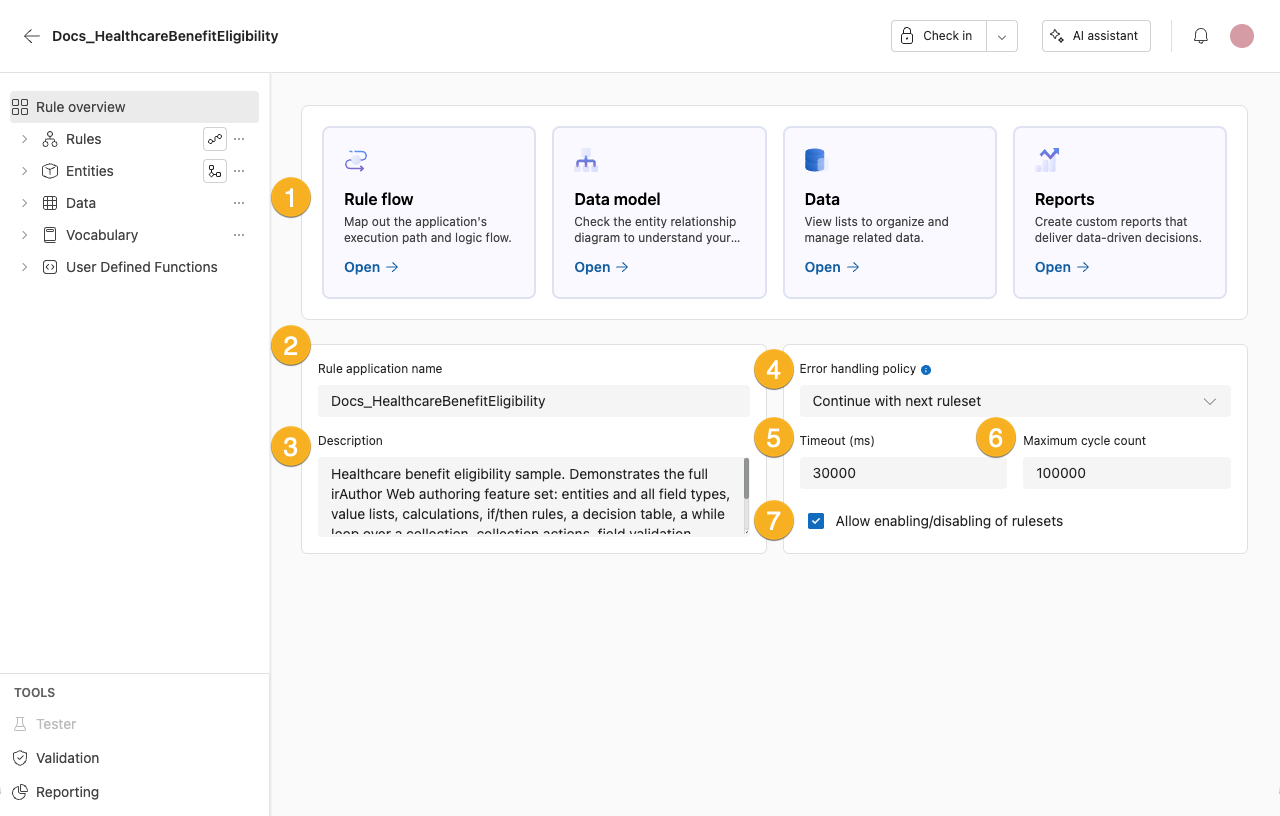
1. Shortcuts Shortcuts to the various sections of your rule application
2. Name
Here you can edit the Rule Application name
3. Description
Here you can write a description of the rule application. A good description can help you and others at your organization understand the purpose of the rule application.
4. Error Handling Policy
Specifies how the runtime should proceed after a runtime error occurs during rule processing.
- Continue with Next Ruleset – Skips the ruleset and proceeds with the next ruleset
- Continue with Next Rule – Skips the rule and proceeds with the next rule
- Halt – Stops the execution as soon as an error is encountered
5. Timeout (ms)
Specifies a timeout period for when rules are applied. This setting, along with Max Cycle Count, can be increased for highly complex rule applications. Enter a whole number up to a maximum of 120,000.
6. Maximum cycle count
Specifies a maximum cycle count for rules execution. This is used to prevent infinite while loops and infinite re-execution of rules due to changes in dependencies. The counter is incremented whenever an Entity is walked, a Calculation Field evaluates, or a Rule/Action executes. Enter a whole number up to a maximum of 256,000,000.
The Timeout and Maximum cycle count fields accept whole numbers only. If you enter a value that is not a whole number or is above the maximum, the field displays Invalid value.
7. Allow enabling/disabling of rulesets
Specifies that rule elements may be selectively disabled by the author.