Logging in to the SaaS Portal
To access the SaaS Portal, you should be a licensed user with credentials.
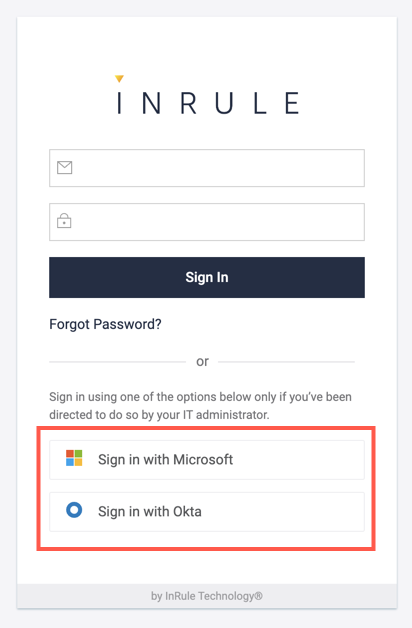
InRule offers two log in methods, logging in via SSO or a username and password.
Log in with SSO
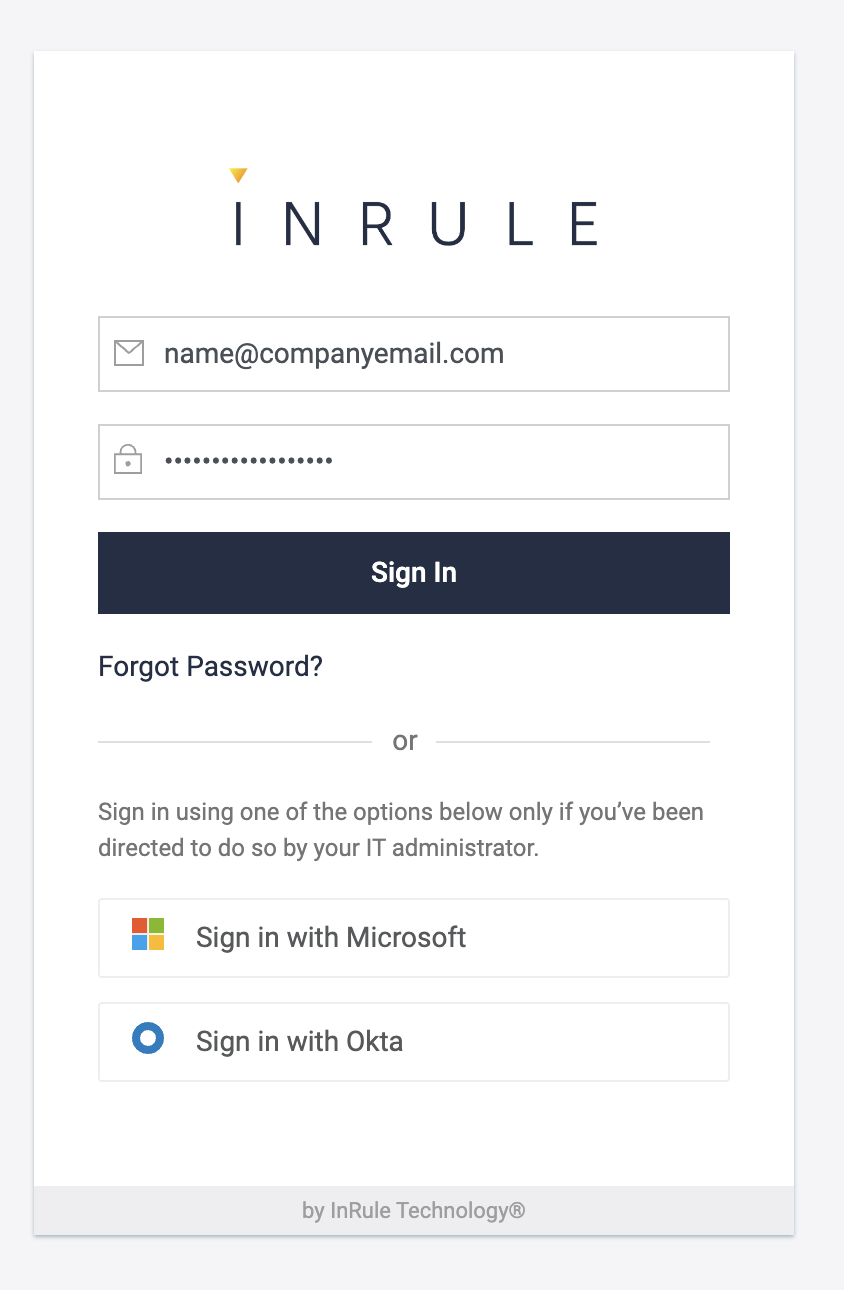
Log in with email and password
Logging in for the first time
When logging in to the InRule SaaS Portal for the first time, you need to set a password before you can log in.
-
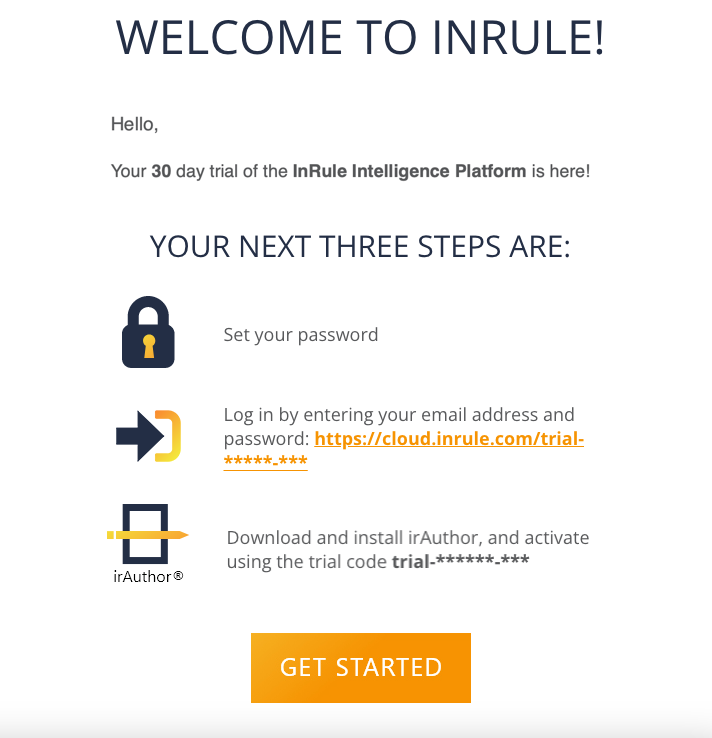
In the welcome email you received, click on Get Started or Set Password.
-
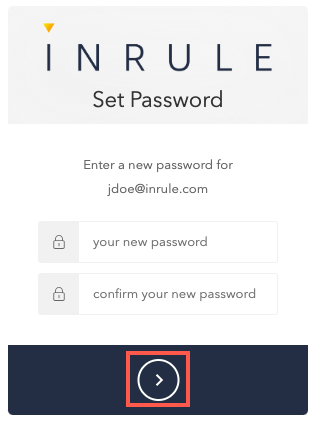
On the Set Password screen, enter your new password and confirm your new password, then click on the arrow at the bottom of the screen.
-
You are now able to use this password to log in.
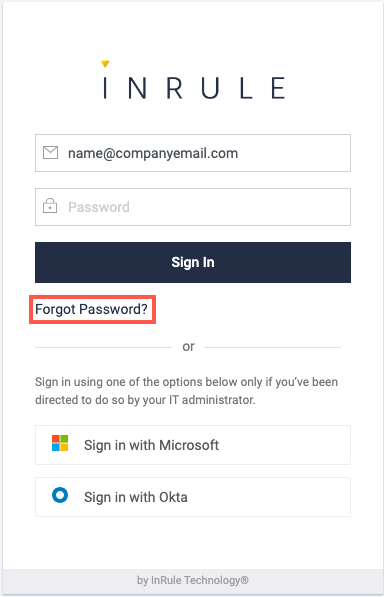
Forgot Password?
-
Navigate to https://cloud.inrule.com/
-
Enter your email address and select Forgot Password.
-
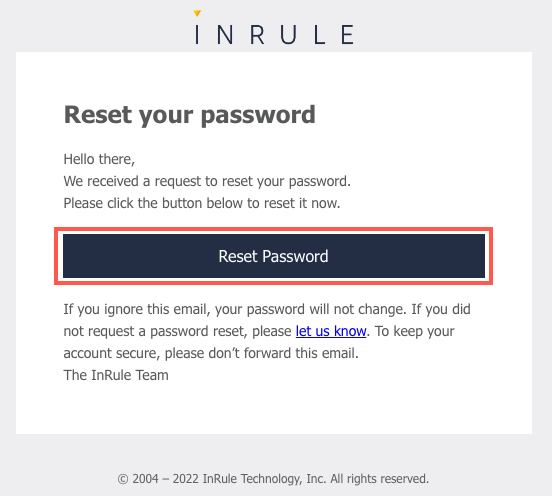
Check your email account for the Forgot Your InRule Password? email. If you do not see the email in your inbox,
- Check Spam and Bulk Mail folders.
- Add no-reply@InRule.com to the address book.
-
Click on the Reset Password link in the email.
-
On the Set Password screen, enter your new password and confirm your new password, then click on the arrow at the bottom of the screen.
-
You are now able to use this password to log in.
Welcome Email Not Received
When a new user without SSO is added to an InRule environment, the system sends an automated welcome email containing a one-time link labeled Get Started or Set Password. If that email does not arrive, you cannot complete the first-time login steps above.
What to check first
- Spam and bulk-mail folders.
The email comes from no-reply@InRule.com with the subject line "You've Been Invited to Try InRule". - Add no-reply@InRule.com to your safe-senders list
(address book or IT-managed allowlist) so future emails are not filtered. - Corporate email filtering.
If your organization uses a mail gateway or firewall, ask your IT team to allowlist the @inrule.com domain for inbound mail.
If the welcome email still cannot be found, you can set your password using the Forgot Password? steps above, even before you've logged in for the first time. If you do not receive that email either, contact your InRule administrator, or create a support ticket via the Support request form or email support@inrule.com for assistance.