Entities in irAuthor Web
Entities are the primary data structures within InRule. They are made up of one or more value or entity fields, collections, calculations, classifications, notifications, actions, and UI components.
Many entities can exist in the same rule application even though they may not be related.
Entities overview
Entities define the schema used by rules during execution. They provide structure for input data, intermediate values, and output data produced by a rule application.
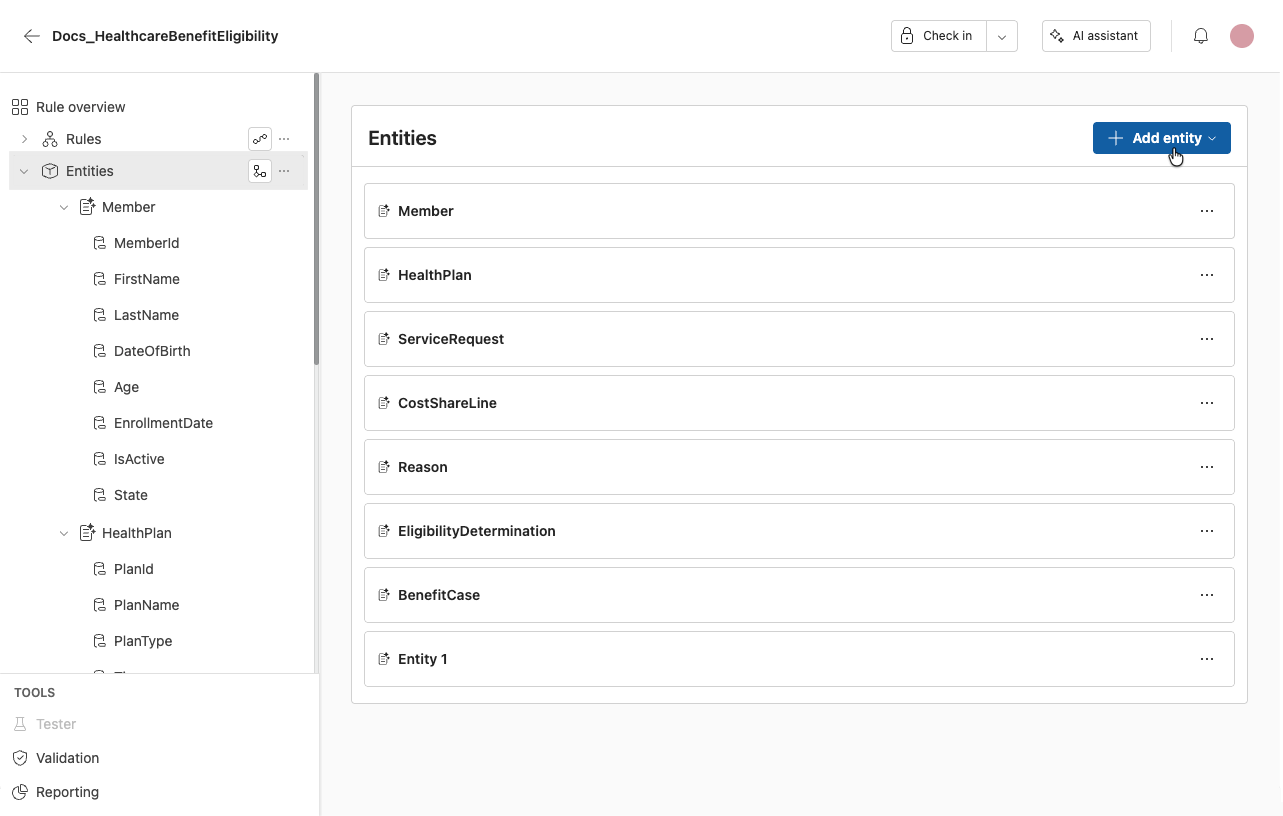
The Entities landing page presents your entities as cards. Each entity, complex field, and complex collection shows its child fields as cards, so you can see an entity's structure at a glance.
You can duplicate or delete an entity or field in place from its ellipsis menu, and edit field settings in place. Field calculations are edited in a single field-calculation interface.
Creating entities
To add an entity to a rule application:
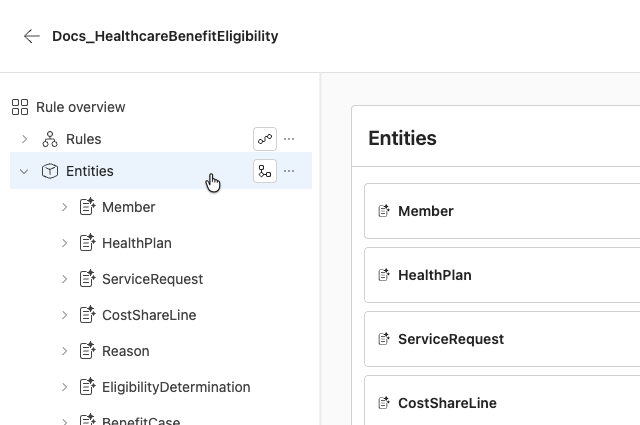
- Navigate to the Entities tab in the navigation menu.
-
From the entity page, select Add Entity.
-
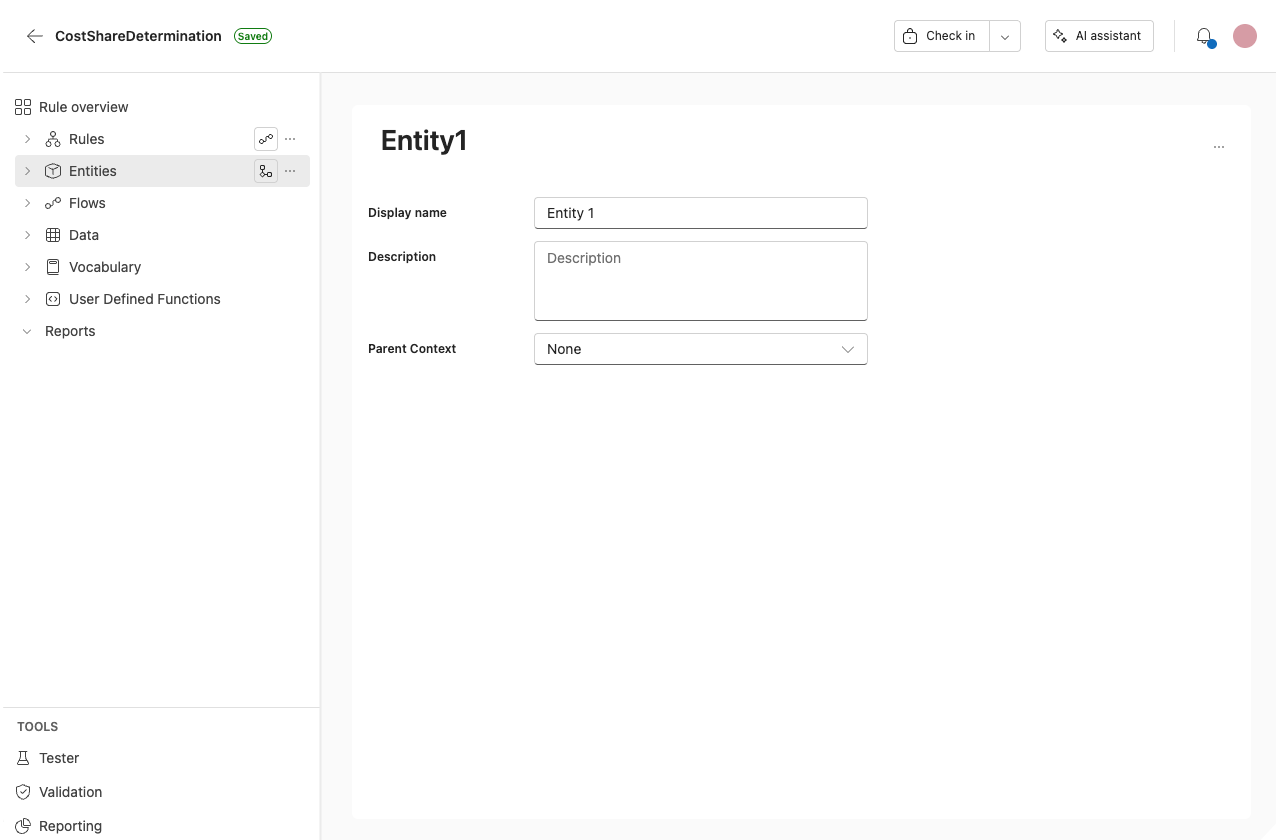
Once the new entity is created, you are redirected to the Entity page, where you can edit the entity by clicking on any of the fields.
Entity navigation
To open the entity overview, click on the Entities tab in the navigation menu.
To add a new entity, select Add Entity from the overview.
To open the Data model, click on the Data model icon.
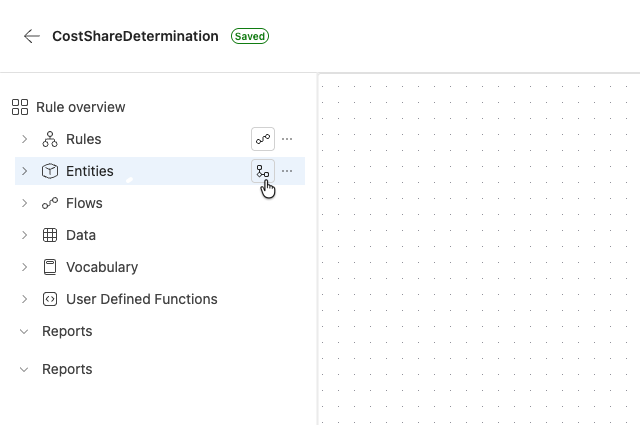
The Data model is a visual representation of how the entities and fields within a rule application relate to each other. It is possible to add and edit entities from this view.
To edit the Data model, the rule application must be checked out.
Entity options
From the entity menu you can add or upload an entity.
Import JSON
You can auto-populate an entity with a JSON snippet. This functions the same way as the Import from JSON Snippet feature in irAuthor.
You can upload a JSON snippet by clicking on the Import icon from the left navigation pane.
You cannot copy and paste JSON snippets in the Web at this time.
Add entity
Click here to add an entity.
Entity menu
There are three element types available:
- Field
- Calculation
- Collection
Collapse entities
To collapse entities in the tree navigation, double-click on the entity you want to collapse.
It is not possible to collapse all entities at once.
Fields
Fields are one of the input elements that make up an entity’s data structure. Fields do not have dependencies on other fields, calculations, or rules.
Field values are provided to the rule engine from the calling application or are entered by the user in the testing tool.
Add a field
Open the entity menu from the navigation pane and select Add field.
Field settings
Open field settings by clicking on the settings icon to the right of the field.
1. Enabled
A field is active and will be applied during execution.
2. Collection
Makes the field a collection.
3. Temporary
Denotes the field is not needed outside of the rule engine and is only used by the rule logic during execution.
Fields set to Temporary are not saved with the entity state. In schema-bound rule applications, setting a field to Temporary indicates the element is not part of the bound model and will not be removed after reloading any bound models.
4. Metric
Flags the field for metrics logging. When enabled, the value of the field is captured during rule execution and can be logged to a data store for monitoring or analysis purposes.
5. Calculated
Switching this toggle enables a field to be a calculated field.
6. Has default value
Allows you to add a default value to the field. If set, the default value is always used.
Complex fields
To add a complex field:
- Add a field.
- Change the Data type from string to Complex field.
Assign a value list to a field
To assign a value list:
- Open the field.
- From the Value list dropdown, select the value list you want to assign.
Collections
The Collection element defines the relationship between a parent entity and its collection of child entities or local "complex" structures.
The association is made in the Data Type dropdown list, which is populated with a list of defined entities.
Add a collection
- You can add a new collection to an entity from the navigation pane.
- You can enable a field to be a collection by switching the toggle in the settings menu.
Under Data type, select an entity from the dropdown.
Complex collections
After adding a collection, set the Data type to Complex collection.
Calculations
Calculations are a special type of rule that are always on. Whenever other fields, calculations, or rules that a calculation depends on change, the calculation is recalculated.
Calculations can be used to create values that are the result of:
- Arithmetic operations
- Expressions
- Conditional statements
- Function calls
InRule uses a spreadsheet-like syntax for expressions used in calculations and rules. Your applications can leverage these potentially complex calculations by name for display or use within other processes.
Calculations are most appropriate when:
- The same expression is referenced in multiple places
- A value must be defined in output state via a single expression
- The expression logic is relatively simple
Add a calculation
- You can add a new calculation to an entity from the navigation pane.
- You can enable a field to be a calculated field by switching the toggle in the field settings.
Duplicating and deleting entities and fields
To duplicate a field or entity:
- Open the entity menu from the navigation pane.
- Select Duplicate.
To delete a field or entity:
- Open the entity menu from the navigation pane.
- Select Delete.